Skip to content
Allday Allshopping

AI assistant

Ask in plain words, review, then run

Fill in product details from photos, draft detail pages and per-channel main images, and get a store design suggested from reference images. It works only inside your store, and charges come out of prepaid credits for what you actually use.

Prepaid credits
Only what you use comes out; the balance never goes negative
Review before running
Changes apply only after you check the plan and press run
Only inside your store
Which store is decided by your sign-in alone
Itemised history · CSV
Group by feature, person or day and download

Features

How the AI assistant works: inside your store, a request, a plan, then running it after review. Other stores' data cannot be found, and charges come from prepaid credits.

Inside your store only

  1. 01Ask in plain wordsDescribe a task or ask how to do something. Look-ups happen right away.
  2. 02A planShows values before → after, the number of items and the estimated cost.
  3. 03Run after reviewChoose Run, Edit or Cancel, and undo after running.
Other stores‘Not found’
Prepaid creditsThe estimate is held first; afterwards only the actual amount is deducted and the rest is released.

Help with listing products

With a product photo and a few facts, the AI assistant prepares the text and images a listing needs. Everything it produces is a suggestion that the seller reviews and applies.

  • Fill in from photos: reads product photos and suggests a product name, category, attributes, option candidates, tags and alt text. Origin, certifications or effects that cannot be seen in the photo are left blank, and each field is applied separately.
  • Detail pages: ‘Template only’ fills sections from the product data for free; ‘With AI’ drafts the headline, product story, key points, care tips and FAQ from photos and keywords. AI-written sections are published only after you confirm them, and drafts can be made for many products at once.
  • Main images: from one photo, make main images that follow each channel's rules. ‘Product only’ removes the background and places the product alone on white at the channel's size; ‘Styled’ adds a background (from the background library or AI-generated), shadow and short badges. The product itself is never redrawn: the cut-out from the original is used as is.
  • Photo check: blur, darkness and size are checked for free; an AI check for watermarks, other shops' logos or heavy text runs only when you ask.
  • AI translation: on the language tabs of the product, option, category, tag and board forms, empty languages are translated into drafts you check before saving; for many products, only the missing languages are translated at once. The same source text is charged only once.
  • Store design from images: attach one to five images (a reference site screenshot, your logo, mood photos) and get a store design and copy built only from the platform's design values (colors, fonts, corners, home blocks). Hard-to-read colors are adjusted for contrast, and logos, trademarks and copy from reference screenshots are not reused. Preview it, tweak it (for example ‘brighter’, free of charge), and it reaches your draft only when you apply it; it can be undone.

Help with running the store, by chat

Write what you need in the partner center; the AI assistant looks up what is needed and turns changes into a plan.

  • Products: search and low-stock checks, editing details, prices, options and stock, pausing and resuming sales, bulk price, stock and tag changes, copying a product, applying and publishing a detail template
  • Sales channels: account status and sync errors explained in plain words, connection tests and restarting automatic sync, sending products to a channel or resending them, channel category mapping
  • Customer service: unanswered inquiries and reviews in one place, answers to inquiries and replies to reviews, chat replies and conversation summaries, chat analysis and inquiry types (created as drafts; the seller turns on automatic sending)
  • Account and store details: business display details and support contacts, exchange and return notes, shipping policies, seller notification emails, the monthly AI budget and turning AI features off

How-to answers

Questions such as “Where do I do this?” or “How do I…?” are answered only from the partner center help and menu guides, with links to the guides used and the menu path. If the guides do not cover it, the assistant does not guess, points you to the operations team, and nothing is charged. When it is something the assistant can do, it offers to do it for you.

Your own store only

The AI assistant goes through the same paths as the buttons the seller presses, with the signed-in person's credentials only. Which store it works on is decided by the sign-in alone and cannot be changed through the conversation.

  • If something from another store is referred to (a product, inquiry or channel account), the answer is ‘not found’, without revealing whether it exists.
  • Ownership of each target is checked twice: when the plan is made and again when it runs.
  • Staff can hand over only the work their own permissions cover, and conversations and plans are visible only to the person who made them (not even to other staff of the same store).
  • Instructions hidden in product descriptions, reviews or inquiries are not followed. Repeated attempts to reach another store's data stop the conversation and alert the operations team.

Review before changes, undo after

Nothing is changed straight away. The plan shows the values that change (before → after), how many items are affected, price warnings and the estimated cost of any other AI feature it uses, and the seller chooses Run, Edit or Cancel.

  • A plan runs only once, only for the person and store it was made for, and only within a time limit.
  • Irreversible actions and actions on many items require typing the number of items before they run.
  • Prices, stock, product details, options, status, channel category mappings and more can be undone right after running; actions that cannot be undone (posting an answer, sending a chat message and so on) are flagged in advance.
  • Work done through the AI assistant is marked ‘AI assistant’ in the store's activity log, together with the person who ran it.

What it does not do

Passwords, two-step verification, payout accounts, staff invitations and permissions, deleting a store or account, domains, AI top-ups and refunds, and the business registration number are not changed by the AI assistant; it only links to the right screen. It does not process orders, settlements or member records, and it never promises customers a refund, exchange or compensation. Consent and credentials when connecting a sales channel are entered by the seller.

Charges: prepaid credits, itemised history

AI features are paid from credits you top up. When a feature runs, the estimated amount is held first; when it finishes, only the actual amount is deducted and the rest is released. If it fails, everything is released, and if credits are short it does not run (the balance never goes negative).

  • Unit prices per feature follow the platform's pricing policy and are shown before running and on the fees page.
  • The AI usage screen lists every use with its amount and how much came from free allowance or credits, grouped by feature, person or date, with CSV export.
  • The store sets a monthly budget, turns individual features off, allows paid use per staff member with an optional monthly limit, and sets the low-balance alert.
  • The monthly free allowance has a platform default that can be set differently per grade or per store; it restarts on the 1st (Korea time) and is used before credits. Requests beyond the free request count are not blocked — they are charged to credits.
  • AI charges are separate from sales settlement and are never deducted from payouts.

Long jobs keep going

Main-image generation and bulk work carry on in the background even if you close the screen. If a server has a problem midway, another one picks the work up, and the same job is never charged twice.
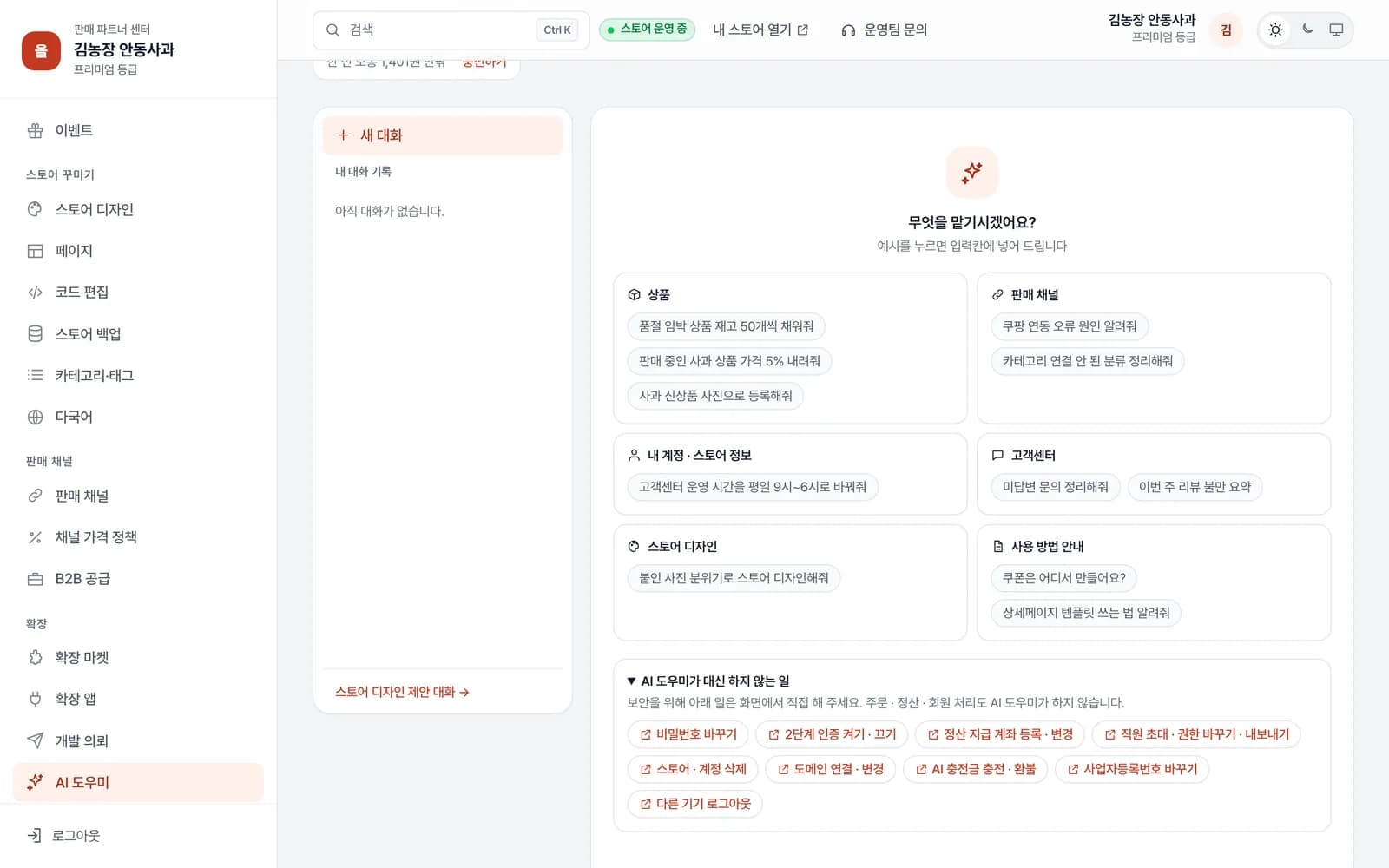
AI assistant start screen in the partner center with example tasks
8 things to know
  • The AI assistant works only when an AI provider is connected in the operating environment. Until then it shows as ‘coming soon’, and detail pages can still be built completely with ‘Template only’.
  • So far the full flow (top-up → run → deduction → history) and the own-store restriction have been verified with a test provider. Answer quality and real costs with a live provider have not been verified yet.
  • AI output is a suggestion. Details filled in from photos are applied field by field, and AI-written detail sections are published only after you confirm them.
  • In chat, the assistant only creates main images. Applying a main image and undoing it are done on the product screen.
  • Vendor accounts cannot use the AI assistant chat or ‘With AI’ detail drafts.
  • For products listed by vendors, the AI assistant does not change content, price, stock, detail pages or translations either; it only handles what the host store is allowed to do: pausing sales and placing them in store categories.
  • Some per-channel main-image numbers still need to be checked against each channel's seller guide.
  • There is no automatic top-up; you are emailed when credits fall below the alert level or run out. Cash receipts and tax invoices for bank-transfer or virtual-account top-ups are not supported yet.

See it on screen

Real partner-center screens with example data. The numbers match the notes below.

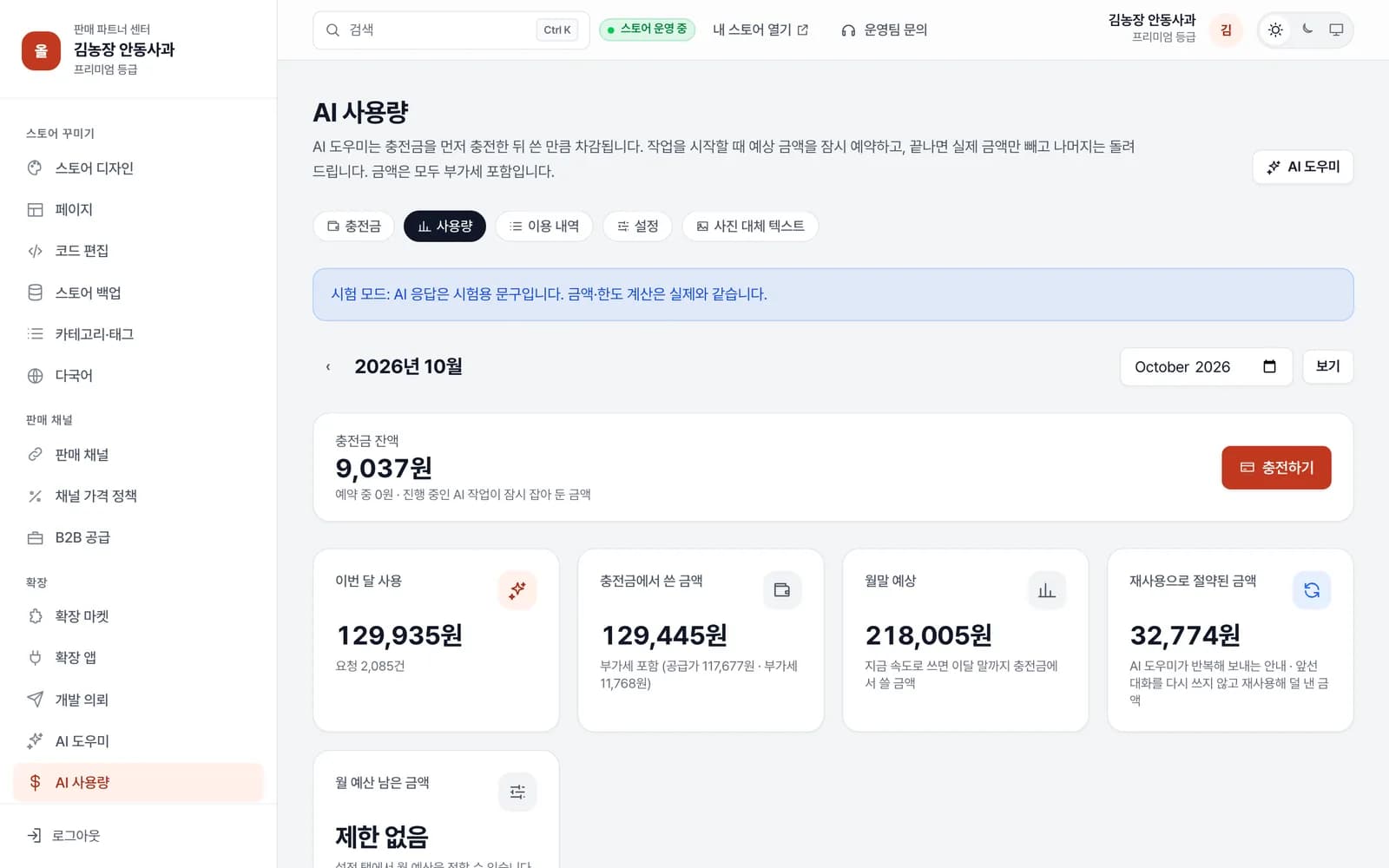
The AI usage screen: credits, usage, history and settings tabs, credit balance with top-up, this month's use, amount saved by reuse, and monthly budget
  1. Tabs — Credits, usage, history, settings and photo alt text. Settings hold the monthly budget, turning features off, allowing staff and per-staff monthly limits.
  2. Balance and holds — Shows the amount temporarily held by running jobs. When a job finishes, only the actual cost is taken and the rest is released.
  3. This month — Requests, credits used and the projected month-end amount at the current pace.
  4. Saved by reuse — Reusing the same guidance or an approved answer doesn't call the AI again, so it costs nothing.
  5. Monthly budget — With a budget set, AI stops when it is reached; without one it says 'no limit'.
How the AI assistant shows a change as an execution plan

Illustration · follows the real screen layout

Find products low on stock and add stock to them

Execution plan

  • What changes: stock per option (before → after)
  • How many items, and which
  • Whether it can be undone
  • Estimated cost if another AI feature is used

Nothing changes until you press Run.

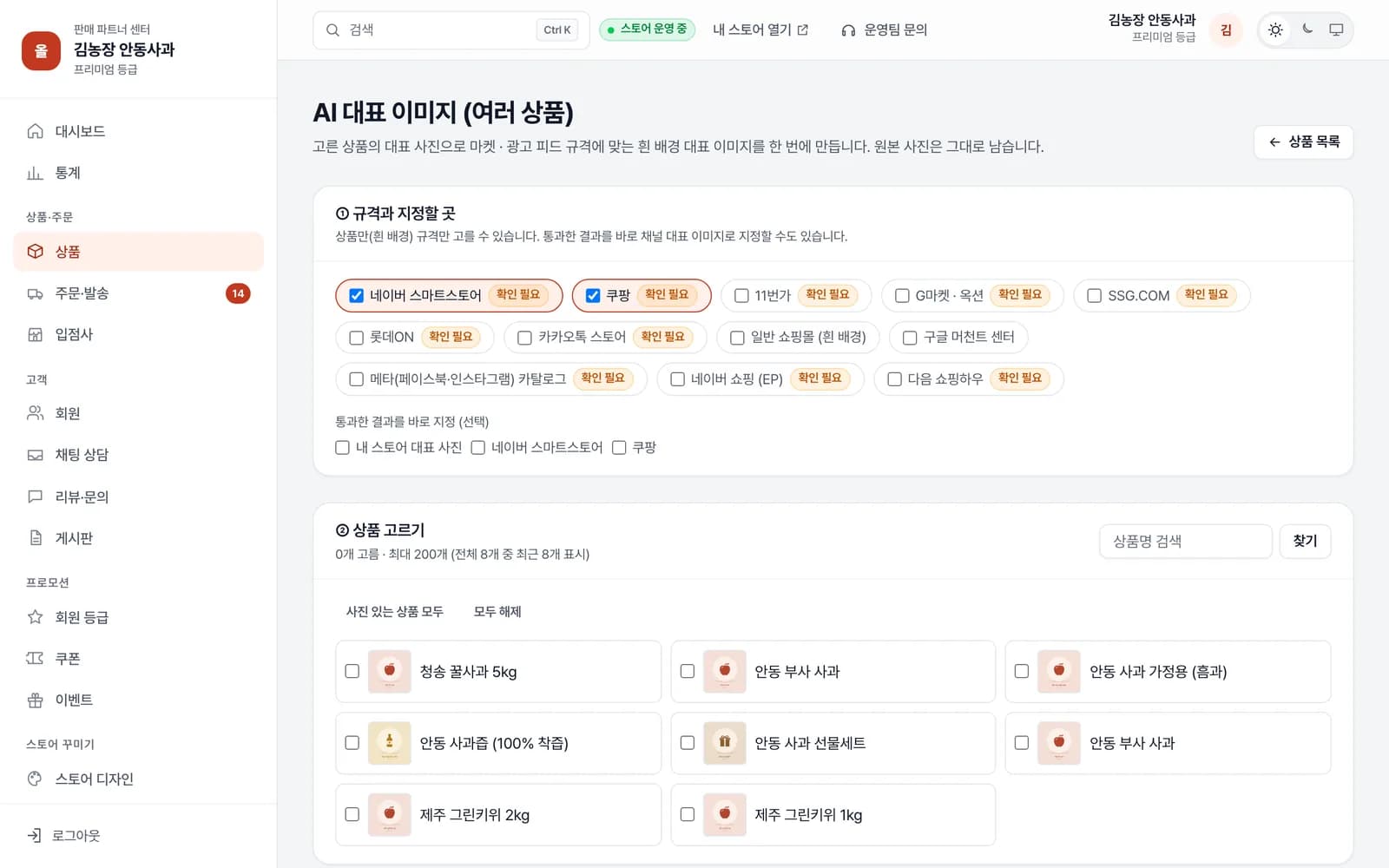
AI main images (several products): choosing the standard and target channels, and the products

How you use it

Step by step, using the real menu names.

Draft a detail page with AI

  1. Product › detail page — choose a template and press 'with AI'
  2. Input — add product photos and keywords to stress
  3. Estimate — the expected cost is shown before running and held from your credits
  4. Review — check and edit the headline, product story, key points, storage tips and FAQ the AI wrote (they are published only after review)
  5. Publish — only the actual cost is taken; the rest is released

Result: The AI leaves origin, certifications and health claims blank when they are not visible in the photos.

Make per-channel main images from one photo

  1. AI main images — choose the products and target channels (Naver, Coupang, your store and so on)
  2. Style — 'product only' removes the background and fits the item on white at the channel's size; 'styled' adds a background, shadow and a short line
  3. Automatic check — size, background, product ratio and text are checked, and an image below a channel's standard can't be assigned to it
  4. Apply — set it as the main image on the product screen, and roll back if you don't like it

Result: The product itself is never redrawn — it is cut from your original. Work continues in the background if you close the screen.

Ask in plain words: tidy up low-stock products

  1. AI assistant — write something like “find products low on stock and add stock”
  2. Find — reading is done right away and the products are shown
  3. Plan — check what changes (before → after) and how many items; for large changes you type the count to run
  4. Run and undo — undo right after with one click, and the activity log records it as 'AI assistant'

Result: Pointing at another store's product gets 'not found'.

Cost examples

Calculated from the current AI price table (VAT included). When the table changes, so does this.

Cost examples
If you do thisCalculationAmount
One detail-page draft (reading 3 photos)₩400 × 1 + ₩20 × 3 (상품 1개)₩460
Fill in product details from 3 photos₩50 × 3 (사진 1장)₩150
Translate 3,000 characters of product text (one language)₩40 × 3 (1,000자)₩120
One main image · product only₩30 × 1 (사진 1장)₩30
One main image · styled (background set)₩50 × 1 (사진 1장)₩50
Store design suggestion from 3 reference photos₩150 × 3 (사진 1장)₩450
One chat AI answer₩20 × 1 (요청 1건)₩20

See pricing

Frequently asked questions

See all questions

How much does one detail-page draft cost?

The 'detail page copy (several products)' price is per product, with a small extra per photo it reads. The 'cost examples' table below calculates examples from the current settings. 'Template only' is free.

What is the minimum top-up, and can I get unused credit back?

The minimum and the top-up buttons are shown with current settings on the fees page. Credits don't expire, and the remaining amount is refunded on request after review, by cancelling the payment, up to what you paid in.

Is there a free monthly allowance?

Operating policy can set a free monthly allowance (an amount) and a number of free requests. There is a platform default, and it can be set differently per grade or per store. Requests beyond the free request count are not blocked; they are simply charged to credits. If an allowance is currently set, it appears in the grade table on the fees page.

Do AI charges come out of my settlement?

No. They come only from prepaid credits and are separate from sales settlement.

What won't the AI assistant do?

It doesn't change passwords, two-step sign-in, payout accounts, staff invitations and permissions, store or account deletion, domains, top-ups and refunds, or the business registration number — it links you to those screens. It doesn't process orders, settlement or members, and never promises customers refunds or compensation.

Do I get receipts or tax invoices for credits?

Card receipts are on the credits screen. Cash receipts and tax invoices for bank-transfer or virtual-account top-ups are not supported yet.

Can the AI assistant see another store's data?

No. It uses the same functions as your own store's screens, with the signed-in person's credentials. Anything from another store comes back as ‘not found’, and repeated attempts stop the conversation and alert the operations team.

Will it change products or prices on its own?

Changes are only proposed as a plan. You check the values and the number of items, and nothing happens until you press Run; many actions can be reverted right after with Undo.

When and how much am I charged?

The estimated amount is held from your credits when a feature runs; afterwards only the actual amount is deducted and the rest is released. Nothing is charged if it fails. Unit prices follow the platform's pricing policy and are shown before running, and every use is listed on the AI usage screen.

What happens when credits run short?

The feature does not run and you are offered a top-up. Bulk work processes what it can and pauses; bulk main-image jobs can be resumed after topping up.

Not sure where to start?

Pick what you want to do and we will point you to the right application. Ask the support desk if anything is unclear.