Skip to content
Allday Allshopping

Build your store

Start from a template, then make it yours

On approval your store is created as a copy of a template. Edit it with the block editor or its HTML code, and add theme packs, page packs and widgets from the extension market. Customers see changes only after you publish.

Blocks or code
Edit with forms in the block editor, or edit HTML and CSS directly
Draft → publish
Customers see nothing until you publish; roll back from the publish history
5 backups by default
One is kept automatically before applying a pack or switching editing mode
860px detail images
Export a detail page as sliced images for open markets

Store design

Start from a template and change as much as you want

A store is created by copying a template at approval. The copy belongs to that store alone, so changes to the original template do not alter your store.

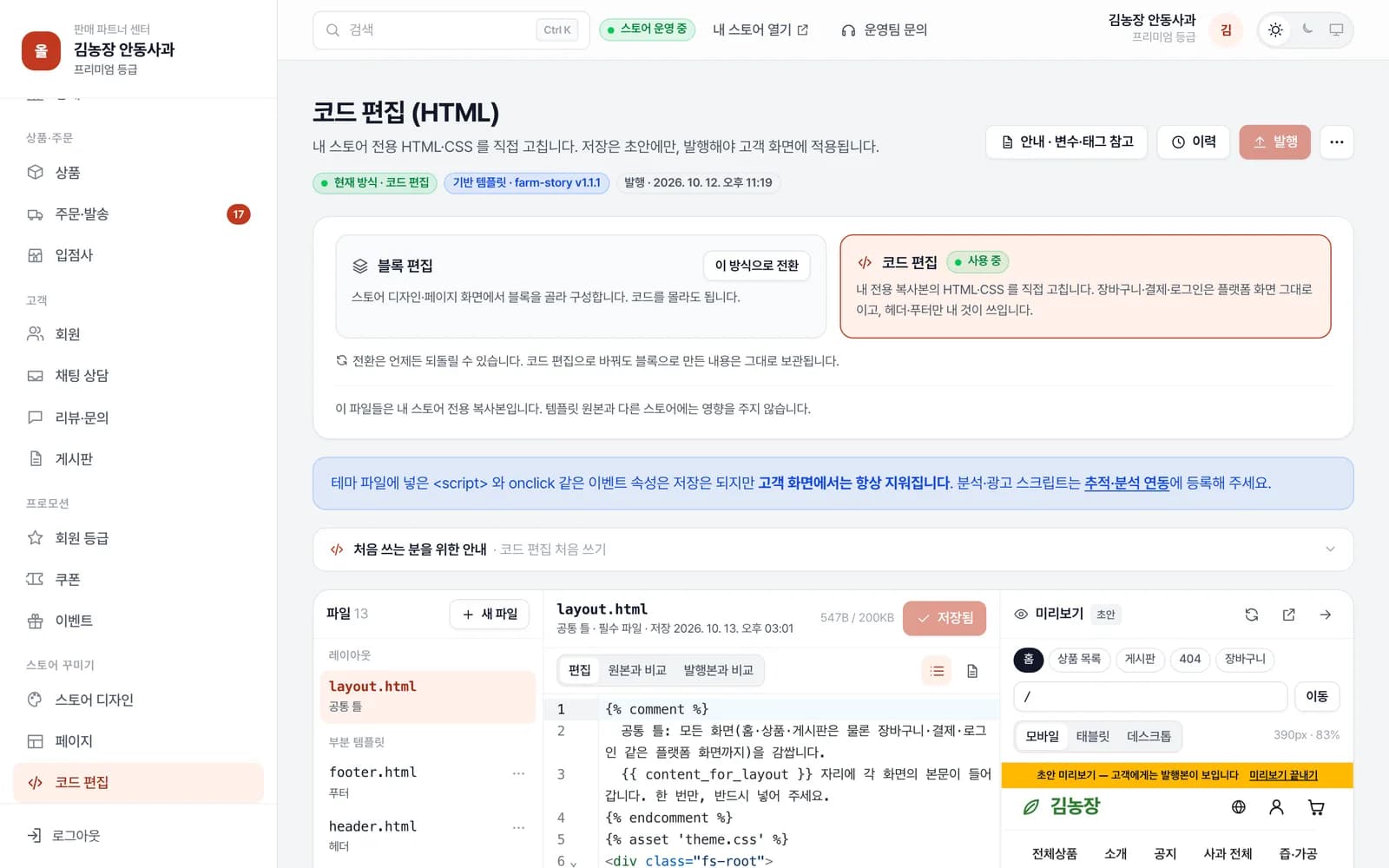
HTML code editor in the partner center

Two ways to edit

Block mode changes theme values such as colours, fonts and layout, and section blocks, through forms. Code mode gives you the theme files (HTML templates and CSS) as a copy for your store to edit directly.

  • Add, reorder, hide and duplicate sections, with a form per block
  • Preview and publish in the code editor, and roll back to an earlier version
  • Draft and published versions are separate: customers see nothing until you publish

Theme packs and page packs

Bring in a design or a page layout in one step with theme packs and page packs installed from the extension market. Besides themes for food stores, the official packs include the fashion theme ‘Mono Select’, the living theme ‘Soft Living’ and a ‘Buying guide and specifications’ page pack for products chosen by comparing specifications, such as electronics; all are free. The preview does not change the store, the pack is applied to the draft only, and one click restores the state from before. In a code-edited store, you choose what happens to files you changed yourself.

Store backups

Keep the whole design state (edit mode, theme values, pages, theme files, translations and the images they use) and roll back to that point if something goes wrong. The default is up to five per store; the operations team sets the number per store. A backup is taken automatically before a pack is applied or the edit mode is switched. Product, order and member data and tracking settings are not part of a backup.

Custom domain

Connect your own domain instead of the store address. A certificate is issued automatically after the DNS settings are verified. Availability depends on the grade.

Multilingual store

Turn on the languages a store uses from Korean, English, Japanese, Chinese (Simplified and Traditional), Vietnamese and Thai, and enter translations for products, options, categories, tags and boards right in their edit forms. Per-language addresses and search-engine language tags are generated with them, and untranslated fields show in English or the Korean original.

Automatic product detail pages

For each product, fill in sections such as the headline, brand and product story, key points, photos, usage and care tips and FAQ, then pick a detail template — the detail page is built for you. Sections start pre-filled from the product name, origin, options, shipping policy and the legally required product information, and switching templates keeps the content. Ten official templates (producer story, gift set, seafood, processed food, photo-led, purchasing agent, plus fashion lookbook, beauty ingredients and use, digital specs and living spaces) plus templates from the extension market; the result shows on the store and the main mall as real text (searchable and translatable) and can be exported as 860px-wide detail images (JPG/PNG slices) for open markets. Templates alone are free; the AI assistant can optionally draft the copy (charged from prepaid credits, published only after you review it).

  • Live desktop and mobile preview, drag to reorder, hide sections, restore earlier versions
  • Warnings before publishing for risky food-advertising claims, for cosmetics the claims restricted by the Cosmetics Act (medical or functional claims, unfounded safety or superlative claims, expert endorsements), and low colour contrast
  • Apply to many products at once; send HTML or detail images per sales channel

AI assistant

In the partner center, hand over product, sales-channel, store-detail and customer-inquiry work in plain language. It works with the signed-in person's permissions inside your own store only, and changes are shown as a plan first and applied only when the seller presses Run (paid from prepaid credits for what you use; works only when connected in the operating environment).

Product pages and lists on phones

Product pages and product lists on your store and the marketplace work like this on phones, with nothing to set up. Code-edited themes get the same screens where they use the product photo and buy-area slots, and the bottom buy bar appears on both block and code-edited stores.

  • Product photos: swipe through them, with a counter such as ‘3 / 8’ in the bottom corner. On desktop, use the thumbnails, arrow buttons or arrow keys
  • Full-screen view: tap a photo to open it full screen. Swipe between photos, pinch to zoom (up to 4x) or double-tap to zoom, and drag with one finger while zoomed. Closing it returns to the last photo you viewed
  • Bottom buy bar: once the buy area scrolls off screen, a bar with Ask, Wishlist, the price, Cart and Buy now sticks to the bottom. After you pick an option it shows that option's total; on very narrow screens the price is hidden and the buy button takes the space
  • Option sheet: pressing Cart or Buy now before choosing an option opens a sheet from the bottom with options, quantity and total. It shares its selection with the buy area on the page, and after adding, ‘Added to cart · View cart’ shows briefly
  • Ask: signed-in customers who tap Ask get a sheet to write a product question; otherwise the page scrolls to the question section's sign-in prompt
  • List filters: on search, category and brand pages and store product lists, the filter chips sit in one row you scroll sideways, and the price, origin and brand chips open as sheets from the bottom (tap outside to close)

A store that carries your brand

The store uses the seller partner's name, logo, browser icon (favicon), link-sharing image, header and footer. The platform credit (Powered by) is hidden by default and appears in the footer only if the operations team turns it on for that store. Sign-up, sign-in, cart, checkout and my page all happen on the store's own address, and customers see only that store's orders, points, coupons and grade.

Search engines

Each store serves its own sitemap and robots.txt on its own address (including a connected domain). The sitemap lists products, store categories, tags, events, boards and posts, while cart, checkout, my page and sign-in addresses are kept out of crawling. The front page, product lists and product pages carry structured data, and you set a search engine title and description for the store and for each category.

Search, cart and viewed-together products

Shopping conveniences built into the marketplace and every store with nothing to set up.

  • Search suggestions: typing suggests products (with photo and price), categories and search terms; with the box empty it shows recent searches (8, kept only in this browser) and popular searches. Popular searches are, by default, terms searched with results by at least 2 visitors in the last 14 days; the operations team sets the criteria
  • Viewed together: below a product, products viewed in the same visit or bought in the same order over the last 60 days; without that history it fills in with popular products from the same category. In a store, only that store's products appear
  • Recently viewed: up to 30 products viewed in this browser, shown again in my page without signing in
  • Cart: order just the selected items, and order the rest even if some cannot be bought. Items whose price changed since they were added show how much it went down or up, and options with little stock left (5 or fewer by default) show ‘n left’
  • Reviews: rating breakdown, photo reviews only and sort by most helpful; ‘Helpful’ can be pressed once per review by each member (not on their own review)
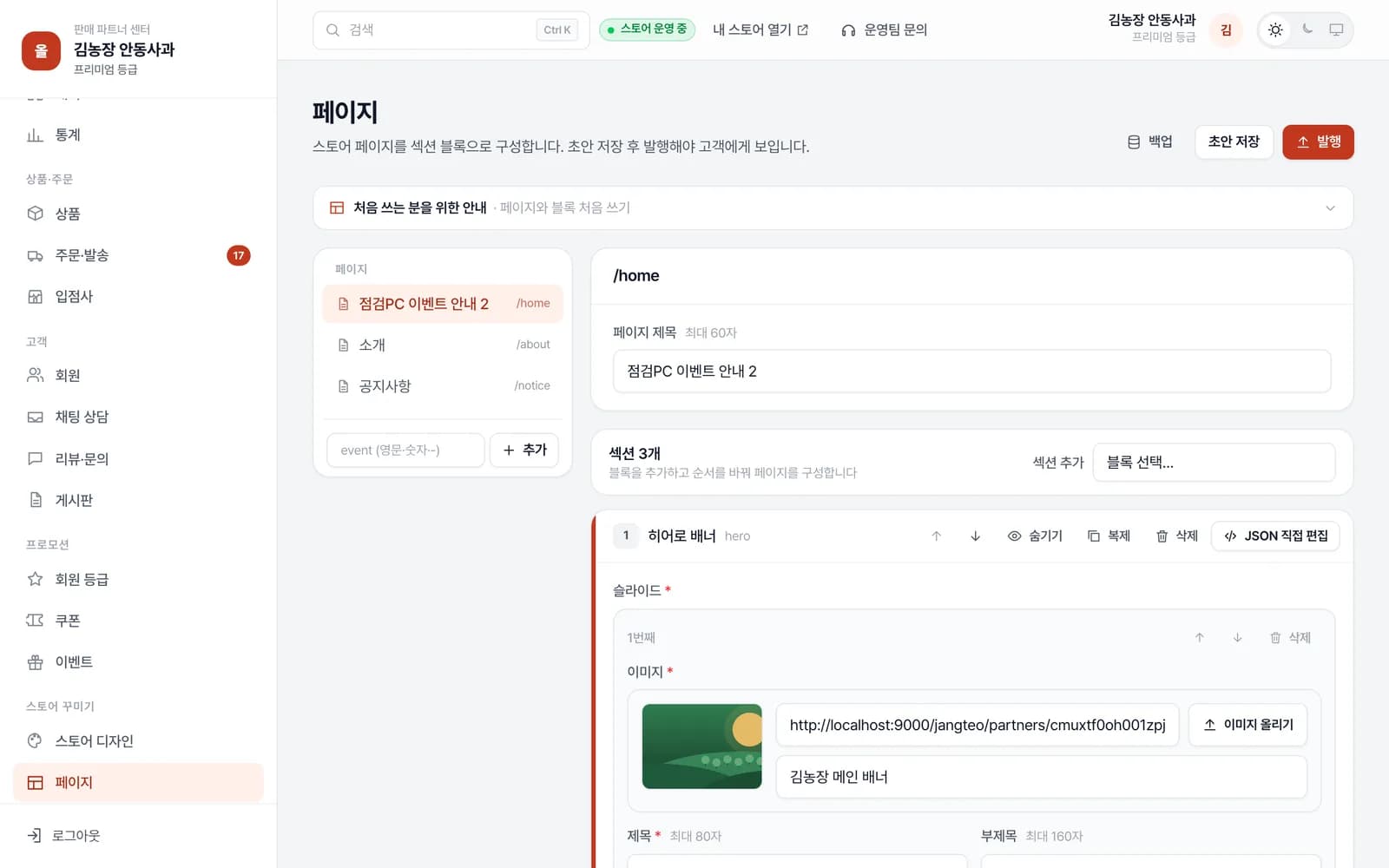
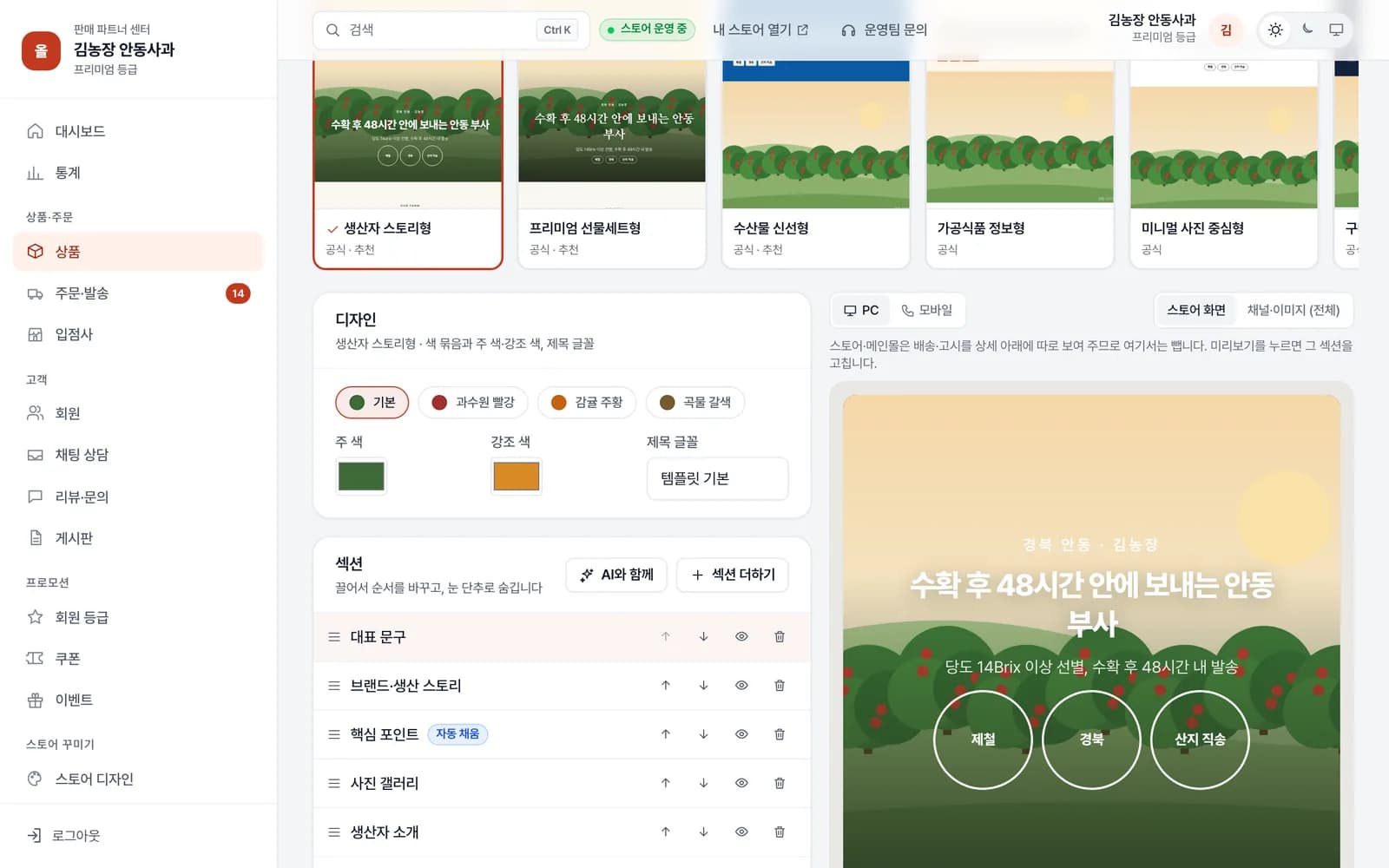
Page block editor in the partner center

Templates available now

The templates a new store is copied from, exactly as registered in the service. Names and descriptions below come from the service and are in Korean.

  • 메이커 스토리형

    만든 사람의 이야기와 시즌 상품을 앞세우는 따뜻한 레이아웃

    Blocks: hero banner, seller story, product grid, image and text, reviews, notice, FAQ, banner, category menu, video, board posts, category shelf, member greeting, events

  • 브랜드형

    브랜드 아이덴티티 중심의 깔끔한 프리미엄 레이아웃

    Blocks: hero banner, product grid, image and text, banner, reviews, text, video, category menu, board posts, category shelf, member greeting, events

  • 카탈로그형

    상품 수가 많은 유통사에 맞는 목록 중심 레이아웃

    Blocks: category menu, product grid, banner, notice, FAQ, board posts, category shelf, member greeting, events

  • 매거진형

    콘텐츠(레시피, 브랜드 소식)와 판매를 결합한 레이아웃

    Blocks: hero banner, seller story, text, product grid, image and text, video, reviews, custom HTML, board posts, category shelf, member greeting, events · from the 프리미엄 grade

3 things to know
  • Scripts and event attributes placed in code-edited theme files are not executed; they are removed. Analytics and advertising tools are connected by ID in the tracking settings.
  • Hand-written scripts are possible only when the platform administrator has switched the feature on, for stores on an eligible grade, and only on public screens. Every save runs an automatic check, and under the criteria the administrator sets the script is approved at once, sent to review, or rejected (off by default).
  • A theme whose code you edited does not receive new template versions automatically.

Extension market

Pick the features you need and install them in your store

The extension market is where features for stores are offered. Official Allday Allshopping extensions, extensions from approved developers and designs from approved designers are published after review, and store operators choose what to install.

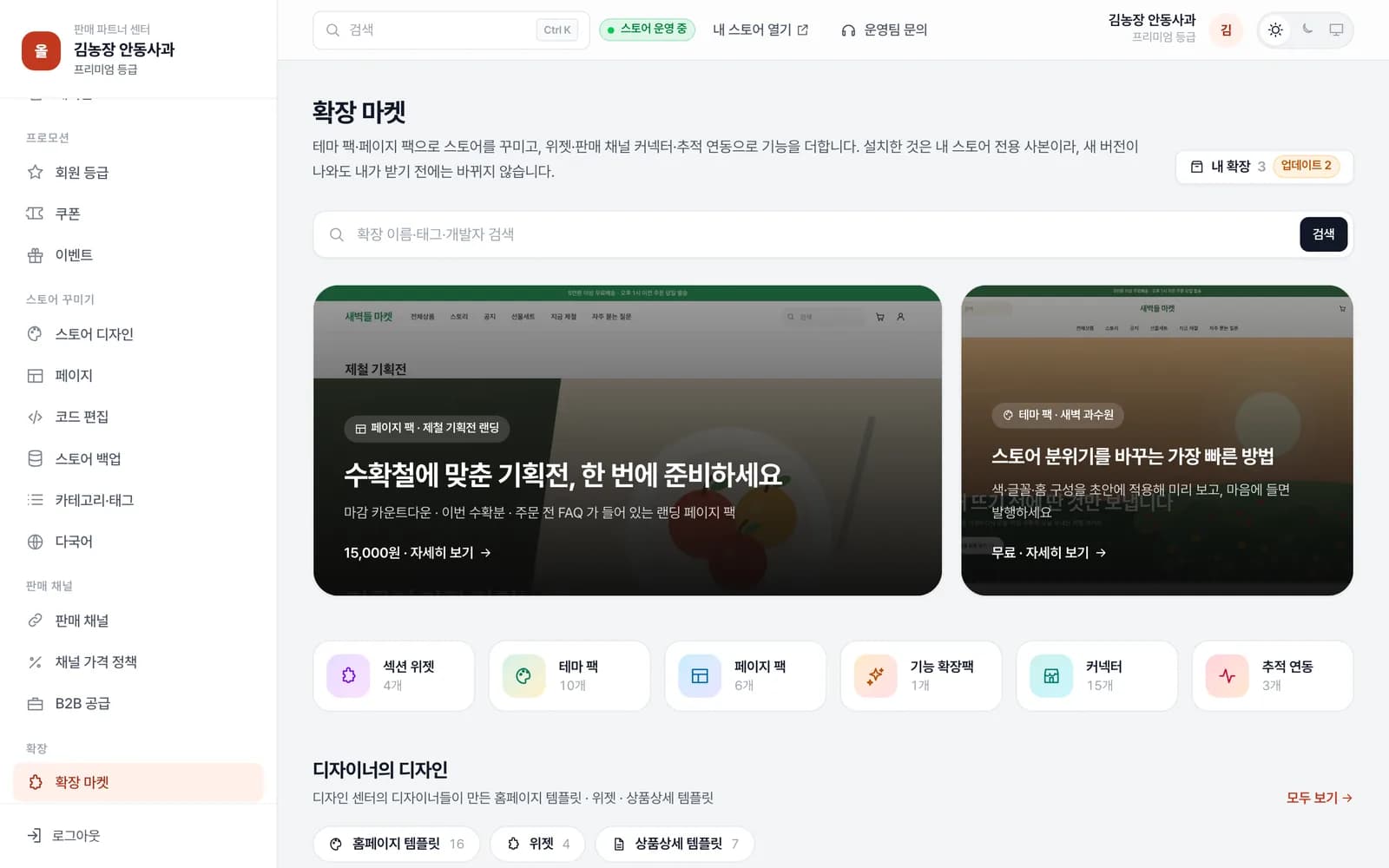
Extension market in the partner center

Kinds of extension

They range from screen components to operating features.

  • Section widgets, theme packs and page packs: building store screens
  • Product-detail templates: the layout and look of product detail pages
  • Feature extensions: switch on a new capability, such as the vendor pack
  • Sales-channel connectors: external markets, feeds and file exchange
  • Tracking integrations: connect analytics and advertising tools

Who makes them: developers and designers

Developers build widgets, packs, connectors and apps in the developer center. Designers make homepage templates (theme packs and page packs), widgets and product-detail templates without code in the design center. Items made by designers are marked "Designer" in the market and can be filtered by maker. Both roles use the same sales and settlement flow.

Applying theme packs and page packs

An installed pack is previewed first and then applied to the store's draft only. Customers see nothing until you publish, and the apply history can restore the state from before. New versions are flagged as "update available" and are never applied automatically.

Browsing and reviews

Filter by category, kind, price and editing mode, and search. The detail screen shows screenshots, the change history, required permissions, the price and the developer. Only a store that installed an extension can review it, one review per store, and the developer can reply. Published extensions can be browsed on this site's extension market preview without signing in.

Install and consent

The permissions an extension needs are shown at install time and require consent. If a new version asks for more, consent is requested again and a history is kept.

Safety principle

Extensions are settings declared in a manifest. Stores do not execute third-party code; scripts, event attributes and external styles are rejected by automatic checks. A store runs the snapshot taken when it installed the extension.

Commissioned work

A store operator commissions a developer with a defined scope and period. Edit access is granted only after the operator approves a developer's proposal, and only for that scope and period. It closes automatically when the period ends or the work is completed, and the operator can revoke it at any time. Each commission has a message thread between the operator and the developer.

Extension market today

From live service data.

Extensions published in the market now (from live service data)

Market fee on paid extensions and commissioned work: 20% (platform setting)

See each published extension

4 things to know
  • A market fee applies to paid extensions and commissioned work.
  • Some extensions require a minimum grade.
  • A paid extension is a one-time payment that keeps working in that store (per store).
  • Commissions have no quotes or milestone payments: developers propose within the budget and period the store sets, and the store approves one developer.

Marketplace front page

The operations team edits the marketplace front page directly in the admin console

The operations team changes the marketplace front page under admin console › products and marketplace › front page. Saved changes appear in the marketplace right away, and a banner with a start or end time switches within a minute of that time. A seller partner's own store front page is separate and is designed in store design.

Section order and visibility

Move the main banner, categories, featured brands, special collections and events, best sellers, new arrivals, seasonal products, stores and each curated product list (one slot per list) up or down, and show or hide each section. If another operator saved in the meantime, nothing is overwritten and you are asked to reopen and check. Sections with nothing to show (featured brands, an empty list) are not drawn.

Main banners

For each banner set a desktop image (1920×600) and a mobile image (900×900, falling back to the desktop image), alt text, a title, a subtitle and text colour, an address inside the marketplace to open on tap, a display period and on or off, then put the banners in order. The list marks each one as showing, scheduled, ended or off.

  • Display periods are entered in Korea time
  • Links can only point to addresses inside the marketplace
  • If no banner is on, the default front-page artwork is shown

A banner you can swipe

On phones customers swipe through banners; on desktop they use the arrow buttons and dots. Banners advance every five seconds, pause when the pointer is over them or they scroll out of view, and rest for a moment after a manual swipe. There is a pause and play button, and for customers whose device asks for reduced motion the banner starts paused. Phones load the mobile image and desktops the desktop image.

Curated product lists

Name and describe a list such as this week's picks, then search for products, add them and set their order. A list holds up to 40 products and the first 20 are shown. Products that are not on sale or are sold only in a partner's own store trigger a warning, and only products open to the marketplace are shown. Each new list is added to the section order as its own slot.

Featured brands

Brands marked as featured in brand management appear, in the order set, in the featured brands section of the front page (up to 24). Only live brands with products on sale in the marketplace are shown.

Saved means live

There is no separate publish step. Saving updates the marketplace right away, and the view in marketplace link opens the real page to check. Every change is kept in the activity log.

4 things to know
  • There is no banner preview page. Changes go live on save, so check the real page with the view in marketplace link.
  • A scheduled banner switches within a minute of its start or end time.
  • Banner text and curated list names are not entered per language; they appear as typed. Product names inside a list follow each product's translations.
  • This covers the marketplace front page only. A seller partner's store front page is changed in store design, from draft to publish.

See it on screen

Real partner-center screens with example data. The numbers match the notes below.

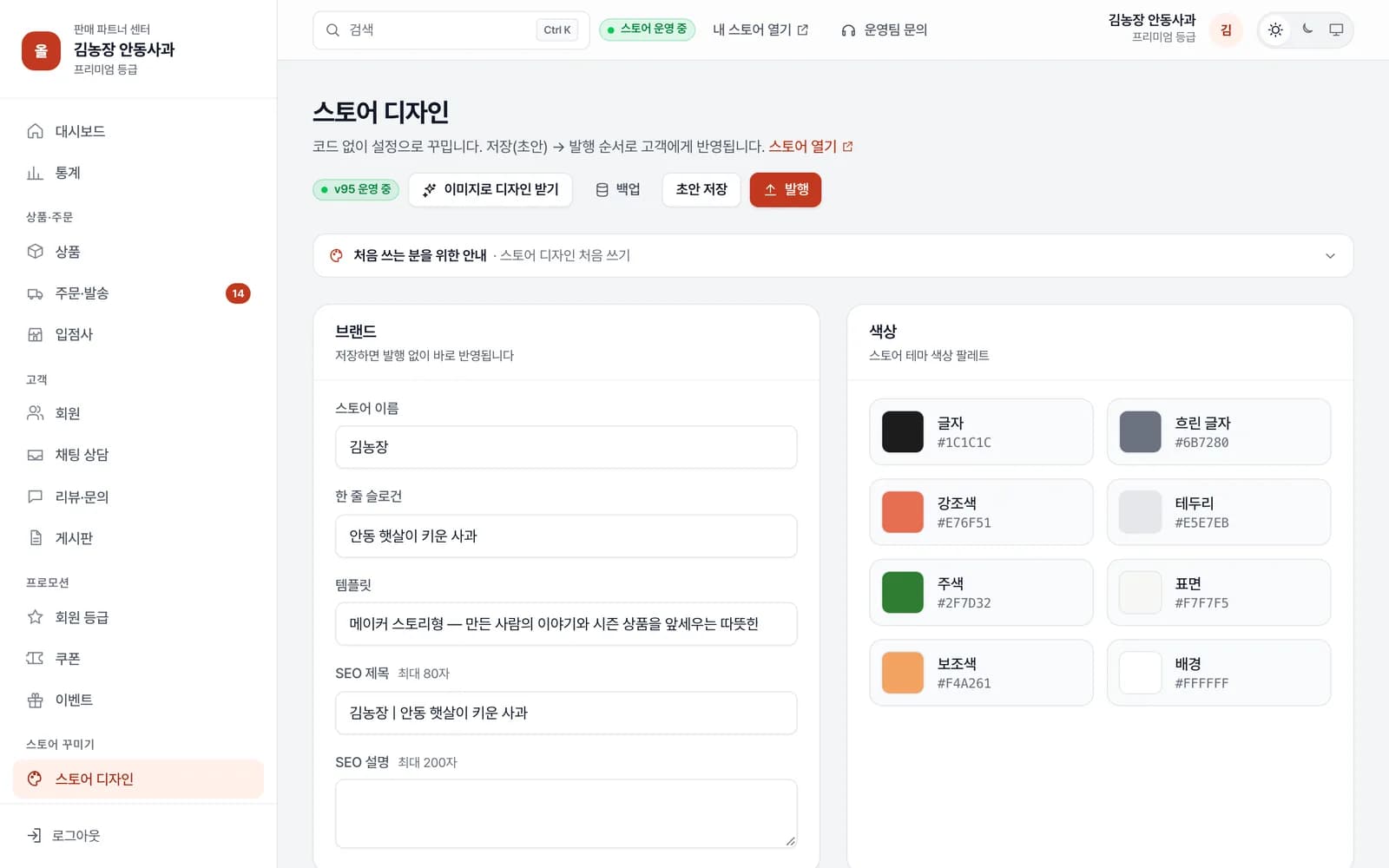
The store design screen in the partner center: design from images, backup, save draft and publish buttons, with brand and colour inputs
  1. Design from images — Upload one to five screenshots, logos or mood photos and the AI assistant suggests a design within the platform's colours, fonts, corners and home blocks. Applying it only changes the draft.
  2. Backup — Keeps the whole design state: editing mode, design values, pages, theme files, translations and images used. Products, orders and members are not included.
  3. Save draft and publish — Saving only updates the draft. Customers see the change when you publish, and the published version number goes up.
  4. Brand — Store name, one-line slogan and search title and description take effect as soon as you save.
  5. Colour palette — Pick text, accent, primary, border, surface and background colours and the whole store uses them.
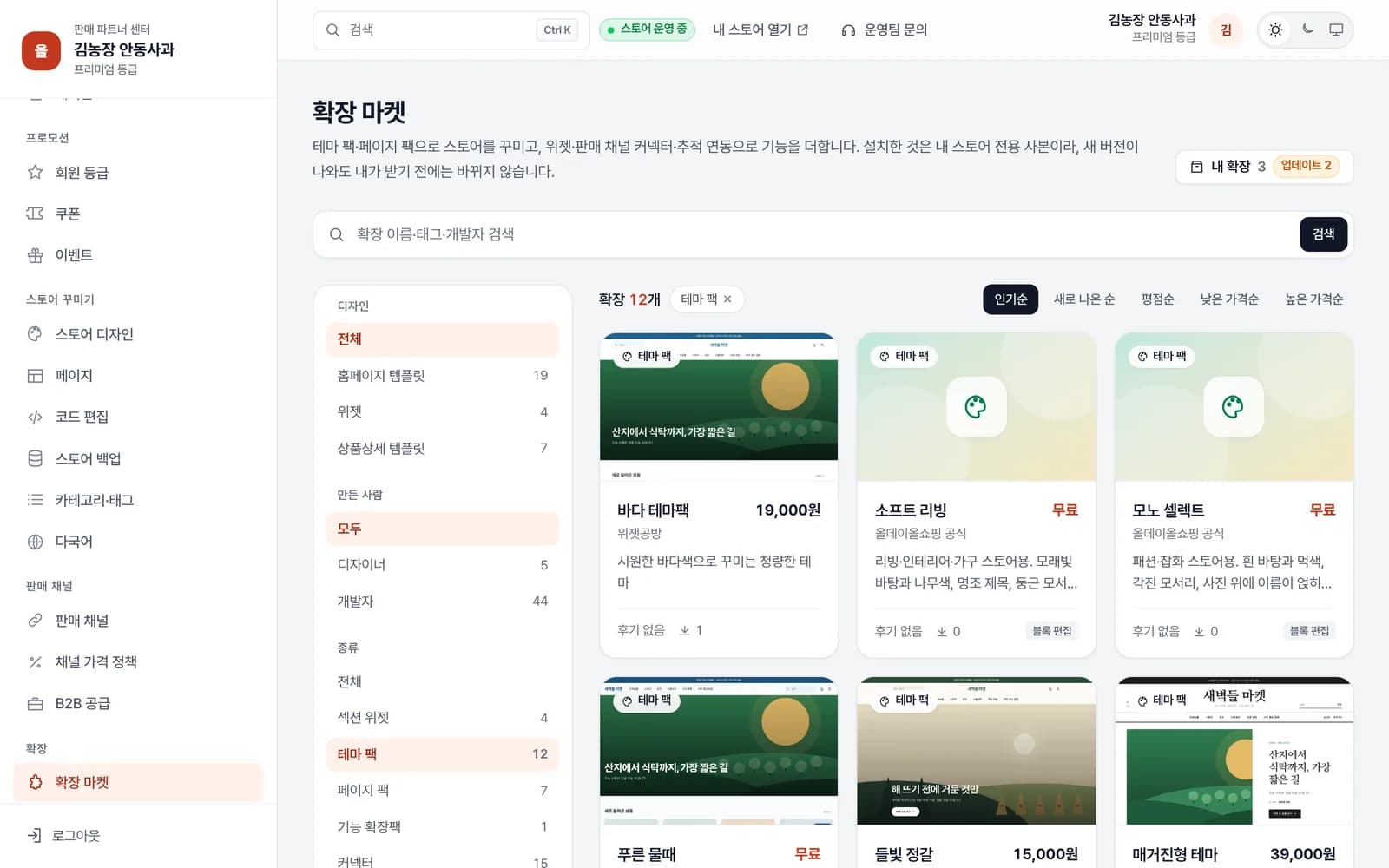
Theme packs in the partner center's extension market, with prices, free labels and editing mode
The product detail page editor: choosing a template, the section list and a PC and mobile preview

How you use it

Step by step, using the real menu names.

Day one: dress up your store's front page

  1. Store design — enter the store name, a one-line slogan and a search title
  2. Colours — put your brand colours into accent and primary
  3. Pages — drag home sections into order and hide the ones you don't need
  4. Preview — check at PC and mobile widths
  5. Publish — customers see it the moment you publish; if you don't like it, roll back from the publish history

Result: Without code, your front page carries your brand colours and words.

Change the whole look with a theme pack

  1. Extension market — filter theme packs by editing mode and price and look at the screenshots
  2. Preview — try an installed pack on your store (nothing changes)
  3. Apply — a backup is made automatically first, and the pack goes into the draft only
  4. Publish or roll back — publish once you are happy, or return to the state before applying from the history

Result: You can try a new design without touching what customers see.

Build a product detail page from a template

  1. Product › detail page — choose a detail template
  2. Pre-filled — product name, origin, options, shipping policy and disclosure values fill the sections
  3. Refine — edit the headline, key points, photos and FAQ and reorder sections
  4. Pre-publish check — review warnings about food labelling, advertising wording and colour contrast
  5. Publish and export — text on your store and the marketplace, 860px detail images for open markets

Result: Templates alone are free, and one detail layout can be applied to many products at once.

Operations team: schedule next week's collection banner

The marketplace front page is edited by the operations team in the admin console, not by seller partners.

  1. Products and marketplace › front page › main banners: add a banner with a desktop image (1920×600), a mobile image (900×900), alt text, a title and a link inside the marketplace
  2. Period — enter the start and end in Korea time and the banner is listed as scheduled
  3. Order — set the banner order with the up and down buttons
  4. Curated product list — search for the collection's products, add them and set their order; the list is added to the section order as its own slot, where you set its position and visibility
  5. Check — open the real page with the view in marketplace link

Result: The banner appears within a minute of its start time and comes down within a minute of its end time. There is no separate preview; saved changes apply right away.

Frequently asked questions

See all questions

Do I have to design the store myself, or are there templates?

On approval a store is created as a copy of a template, ready to use. You can start there and change colours, fonts and sections, install theme packs and page packs from the extension market, or have the AI assistant suggest a design from reference images.

Do I need to code?

No. The block editor changes colours, fonts, layout and sections with forms. Editing HTML and CSS directly is an option you use only if you want to.

Do customers see my edits immediately?

Design and pages are saved to a draft and customers see them only after you publish. You can roll back to an earlier version from the publish history. Brand details such as the store name and slogan apply as soon as you save.

How many store backups can I keep?

Five per store by default; the operations team can change the number per store. A backup is made automatically before applying a pack or switching editing mode. Product, order and member data and tracking settings are not part of a backup.

Can I connect my own domain?

Depending on your grade. Once the DNS settings of the domain check out, a certificate is issued automatically. Which grades include it is shown in the grade table on the fees page.

Can I add my own scripts to the store?

Not by default. Scripts and event attributes in theme files are removed, and analytics and ad tools are connected by entering their IDs in the tracking settings. Custom scripts are possible only when the super admin turns the feature on, for stores of allowed grades, on public pages only, with an automatic check on every save.

Are paid themes a monthly charge?

No. A paid extension is a one-time payment per store and keeps working in that store. There are free theme packs too; check each extension's price in the extension market.

If the original template is updated, does my store change?

No. Your store is a copy, so it stays as it is. New versions of installed packs are flagged as available but never applied automatically.

Not sure where to start?

Pick what you want to do and we will point you to the right application. Ask the support desk if anything is unclear.