Skip to content
Allday Allshopping

Products and orders

From listing to shipping to customer questions

List products in any category with the fields that category needs, and work through orders from every channel by deadline. Offer gifts by order amount, see how consenting members respond to your texts through per-member links, and let customer chat answer by inquiry type on its own.

141 categories
Under 17 top-level groups, each with the fields it needs
28 disclosure forms
The right form is picked from the category, with known values pre-filled
20,000 products per spreadsheet
50MB and 50,000 rows by default; check, review, then apply, with errors by row number
Auto-confirm after 7 days
Orders are confirmed automatically 7 days after delivery

General-merchandise listing

List products from any category, with the fields that category needs

Fashion, beauty, living, electronics and food share one category tree. Pick a category and the fields for that kind of product, the legally required disclosure form and the VAT type come with it.

Top-level categories of the general marketplace and the product information disclosure types

17 top-level categories · 141 in total

  • Women's & men's clothing
  • Fashion accessories
  • Beauty
  • Baby & kids
  • Food
  • Kitchen
  • Household
  • Home & furniture
  • Electronics & digital
  • Sports & outdoors
  • Car accessories
  • Toys & hobbies
  • Stationery & office
  • Pet supplies
  • Books & music
  • Health & medical
  • Overseas direct purchase
Product information disclosure28 types, picked automatically by category
VAT typeTaxable by default · tax-exempt suggested for unprocessed farm, fishery and livestock products and books

17 top-level categories, 141 in all

Clothing, fashion accessories, beauty, baby and kids, food, kitchen, household, home and furniture, electronics and digital, sports and outdoors, car accessories, toys and hobbies, stationery and office, pet supplies, books and music, health and medical, and overseas direct purchase: 17 top-level categories with 141 categories beneath them. Food keeps its farm, fishery, livestock and processed-food branches. Category names are also provided in English, Japanese, Chinese (Simplified and Traditional), Vietnamese and Thai, following the names large shops in each market use.

The right fields for each category

Each category is linked to an attribute set, so the product form shows the fields that kind of product needs. When the operations team edits a set in the admin console, sub-categories follow, and the product form, Excel bulk upload and the AI assistant all use the same fields.

  • Clothing: size, color, material, gender, fit, brand
  • Beauty: volume, skin type, key ingredients, brand
  • Electronics and digital: brand, model name, color, power, warranty
  • Baby, kids and toys: age range, KC certification number, material
  • Books: author, publisher, ISBN

28 disclosure types

There are 28 product information disclosure forms, following the item list of the Korea Fair Trade Commission notice (No. 2022-15). Choosing a category picks the matching form automatically and shows how many required items are still empty. Values we already know, such as the product name, manufacturer, origin and support contact, are filled in for you.

VAT-type suggestions

New products are taxable by default. For unprocessed farm, fishery and livestock products and books, the VAT type is set to tax-exempt with the reason shown. Processed products in the same categories (seasoned laver, roasted nuts and so on) are taxable, so the seller can change it.

Brand filter and short search terms

In categories with a brand field (fashion, beauty, appliances, digital and so on), you pick the brand from the registered brand list (see Brands and the brand directory), and it feeds the brand filter in marketplace search and category lists and in store product lists. Customers can pick several brands, and two-character searches such as ‘사과’ (apple) or ‘TV’ are found quickly.

Examples that fit the product

Depending on the kind of product (food, fashion, beauty, digital, living or general), the examples in the name, option and origin fields change. The season (selling period) field appears for food only.

Bulk upload by Excel or CSV

Download the template from partner center › products › bulk upload and edit, fill it in and upload it. Each row is one option, and rows sharing a product key form one product. The default limits per file are 50MB, 50,000 rows and 20,000 products; the operations team can adjust them in the operating policies. Upload it as an Excel file (.xlsx) or save it as CSV.

  • The template has a products sheet (a help row and examples for farm produce, multi-level options, clothing and shoes), a guide sheet stating whether each column is required and what it means, and a lists sheet with categories, brands, your shipping-fee policies, VAT types and visibility values
  • Category, VAT type, visibility, shipping-fee policy and seasonal columns are drop-downs in Excel. The brand column also accepts names that are not in the list
  • VAT type, visibility and attributes are written as plain Korean words and names, as shown in the template. Add per-language columns such as name_en or summary_ja to upload translations at the same time
  • Photos go in the main image and additional image 1 to 9 columns as image addresses. Each address is fetched once, and the photos are stored in your storage with thumbnails and resized versions to keep them light

Upload, check, review, apply

An uploaded file is checked first and nothing is saved. When the check finishes you see the row and product counts, the products to apply, expected new and updated products, errors and warnings, and a preview of the first products; nothing is saved until you press Apply. Applying runs in the background in batches, so it carries on if you close the page, and the progress is shown on screen.

  • Only products with errors are left out; the rest are applied. Missing required values, bad numbers, categories or price relations, SKUs repeated in the file or used by another store, and unknown shipping-fee policy names are errors; unregistered brands and images that could not be fetched are warnings (the product is still saved)
  • If an SKU already exists among your products, that product is updated; otherwise a new product is created. New products come in as drafts and go through approval as usual
  • Images are retried at intervals after connection failures or server errors. A photo that still cannot be fetched is left out, the product is saved and a warning is recorded. If an update fetches no photos at all, the existing photos are kept
  • When it finishes, the job history keeps the new, updated, failed, skipped and warning counts, and an error report spreadsheet lists row numbers, product keys, SKUs and reasons
  • You can cancel during the check or while applying. Cancelling while applying keeps the products already saved and skips the rest
  • Each store runs one import at a time. Uploading a new file while a job is waiting for review replaces that job
  • Jobs waiting for review and jobs with failures in the last 24 hours appear under ‘to do now’ on the dashboard

Download, edit, upload again (bulk edit)

Download your product list in the same format (up to 50,000 rows by default): headers, value wording and image columns match the import. Change prices, stock or names and upload it as it is; every product is checked as an update, and photos already in your storage are not copied again.

Uploads by the operations team

In the admin console under product bulk upload, the operations team can pick a store and upload, apply and cancel in the same way on that store's behalf, and download that store's template and product export. These uploads are recorded in the operations log, and the progress of every store's imports is shown on one screen.

Supplier feeds

Register a supplier's product feed address (JSON or CSV) under partner center › products › external supplier feeds, and it is fetched on a schedule (every 24 hours by default) to create products by SKU and update prices and stock. The selling price is the supply price × (1 + margin %).

  • For each feed, set an authorisation header, which feed fields hold what (product name, supply price, list price, stock, options, images, origin and so on), a default category for items without one, and default values for required attributes
  • Fetch it straight away with ‘Run now’, and pause, resume or delete it. Deleting a feed leaves the products already imported in place
  • The list keeps the last run's result (new, updated, failed). Depending on the operations setting, fetched feeds are handed to an import job, with the same progress and error report as a spreadsheet upload, and one feed is processed one run at a time

Changing many products at once

Select several products in the product list and change them together. A confirmation shows how many are selected and asks for any values needed; afterwards each product shows success or the reason it failed, and failed ones stay selected.

  • Price adjustment: raise or lower by a percentage or an amount in KRW, and tidy the last digits by rounding to KRW 10, 100 or 1,000. The same rule is applied to product and option prices
  • Stock adjustment: add, subtract or set to a quantity across all stock-managed options
  • Suspend or resume sales, submit for review, archive, add to or remove from store categories, add or remove tags, register to sales channels (products on sale only), and download the selection

Price checks

Product create and edit, bulk upload, bulk price adjustment, B2B wholesale prices and sales channel price policies all check prices by the same rules. A list price below the selling price is not saved. If the selling price is below the supply price, or the sale would lose money after the selling fee, you are shown by how much and must confirm before saving (payment fees and shipping are not counted). Changing the selling price of a product on sale may send it back for review, depending on the grade.

Store categories and tags

Under partner center › store design › categories and tags, create your store's own display categories and tags, separate from the platform categories. Categories can have subcategories and can be reordered, and one product can sit in several categories.

  • For each category, set the address, description, cover image, search engine title and description, whether it is public and whether it appears in the top menu
  • Automatic tags: list tags on a category (up to 20) and products carrying them are included automatically
  • For each tag, set a colour, description and whether its tag page is public, and add or remove a tag on selected products in one go
  • Deleting a category moves its subcategories to the top level and deletes no products. Coupon category conditions use these categories too
9 things to know
  • Outside food, attributes start out optional; the operations team decides which become required.
  • VAT types are suggestions based on the category. The seller must confirm the actual tax treatment of each product.
  • There are no disclosure forms yet for household chemical products or biocidal products.
  • The operations team can rename categories and change attribute sets; category addresses do not change.
  • Bulk upload files do not contain photos; write image addresses (http or https) instead. A product can have up to 20 photos by default.
  • An Excel file is read as a whole sheet, so split files that go over the limits.
  • Bulk upload results show under ‘to do now’ on the dashboard and on the import screen. If the operations team turns on email notices, the person who uploaded the file is also emailed the result (new, updated and failed counts with a link to the job) when the job finishes.
  • Depending on how the operations team sets it up, supplier feeds can run through the same import jobs: they appear in the job list as ‘supplier feed’ with the same progress and error report as Excel uploads. A feed does not start again until its previous job has finished.
  • Vendors do not use bulk upload.

Brands and the brand directory

Register a brand once, and products and the brand directory follow

The operations team keeps brands in a single list under admin console › products and marketplace › brands. Seller partners pick a brand from that list in the product form, or request a new one if it is missing. Customers find brands in the marketplace brand directory and see just that brand's products.

One brand list, run by the operations team

Each brand has a name, an alternative spelling (such as an English name), an address, a logo, a banner, a short description, a country, and a title and description for search engines. Its status is live, pending approval or hidden, and featured brands appear in the order set on the marketplace front page and at the top of the brand directory.

  • The list shows counts by status, products per brand (all and on sale) and the partner who requested it
  • Renaming a brand updates the brand value on its linked products too
  • Changing a brand's address sends visitors from the old address to the new one permanently
  • Brand names already written on products can be imported as brands in one go (spellings that differ only in case or spacing become one brand)

Merging brands

If the same brand ends up with two spellings, merge them. Products move to the brand you keep, the merged name stays as an alias so new products listed under it link to the kept brand, and the merged brand's address redirects permanently to the kept brand's page. A merge cannot be undone, and the change is kept in the activity log.

Brand picker in the product form

In the seller partner's product form the brand field is a picker. Search by part of the name and pick a brand; if it is not listed, choose to request it as a new brand. A requested brand is picked straight away as pending approval and linked to the product, but it appears in the brand directory and as a brand link on product pages only after the operations team approves it.

  • If a brand with the same name already exists (ignoring case, spacing and full-width characters), that brand is picked
  • Hidden brands cannot be newly picked
  • Each partner can have up to 20 requests pending approval
  • Requests show up as brands awaiting approval in the operations team's to-do list in the admin console

Marketplace brand directory

The top of the brand directory shows featured brand cards (banner, logo, product count), followed by every brand under a Korean, A to Z and other index. The row of first letters sticks to the top of the screen and scrolls sideways on phones. Name search also matches alternative spellings. Only live brands with products on sale in the marketplace are shown.

Brand pages

A brand page opens with the banner, logo, name, product count, country and description, followed by a product list with the same filters, sorting and load-more as category lists. On product pages, a live brand gets a link to its brand page in front of the seller's name.

Brand menu

On desktop, Brands sits in the category row of the header; on phones, the category sheet in the bottom tab bar starts with All products and Brands buttons. The brand filter in search and category lists (pick several brands) works as before.

Search engines

The brand directory and brand pages are in the sitemap. Brand pages carry brand, product list and breadcrumb structured data, a search title and description, a share image (the banner, or the logo if there is none) and per-language address hints, and product pages name the registered brand in their structured data.

6 things to know
  • Brand names and descriptions are not translated. As proper names they look the same in every language, and each brand can have one alternative spelling (such as an English name).
  • When a new-brand request is not accepted, the operations team hides it or merges it into another brand. No separate rejection reason is sent.
  • The brand directory and brand pages exist only in the marketplace. Partner stores do not have a brand directory.
  • The supplier product form and the operations team's product form on a seller's behalf take the brand as plain text, which links automatically to a brand with the same name.
  • By default, brands imported from names already on products go live straight away, since those names were already shown on product pages. If the operating policy is set to approve them first, they are created as pending, and the operations team reviews and publishes them from the pending tab of brand management (seller requests and auto-created from products). Products keep selling either way. Brands split by typos are tidied up by merging.
  • By default, the brand value sent to sales channels (open markets, product feeds and file connections) is the seller's store name. If the operating policy is set to the registered brand, the name of the product's live brand is sent instead, falling back to the seller's name when the product has no brand or its brand is not live yet. A change applies from the next product update sent to the channel.

Orders, shipping and stock

Start with what ships today, most urgent first

Orders from the marketplace, your store, external sales channels and B2B arrive in one place. Seller partners and vendors use the same tools within their own products.

Shipping screen in the partner center

Shipping queue

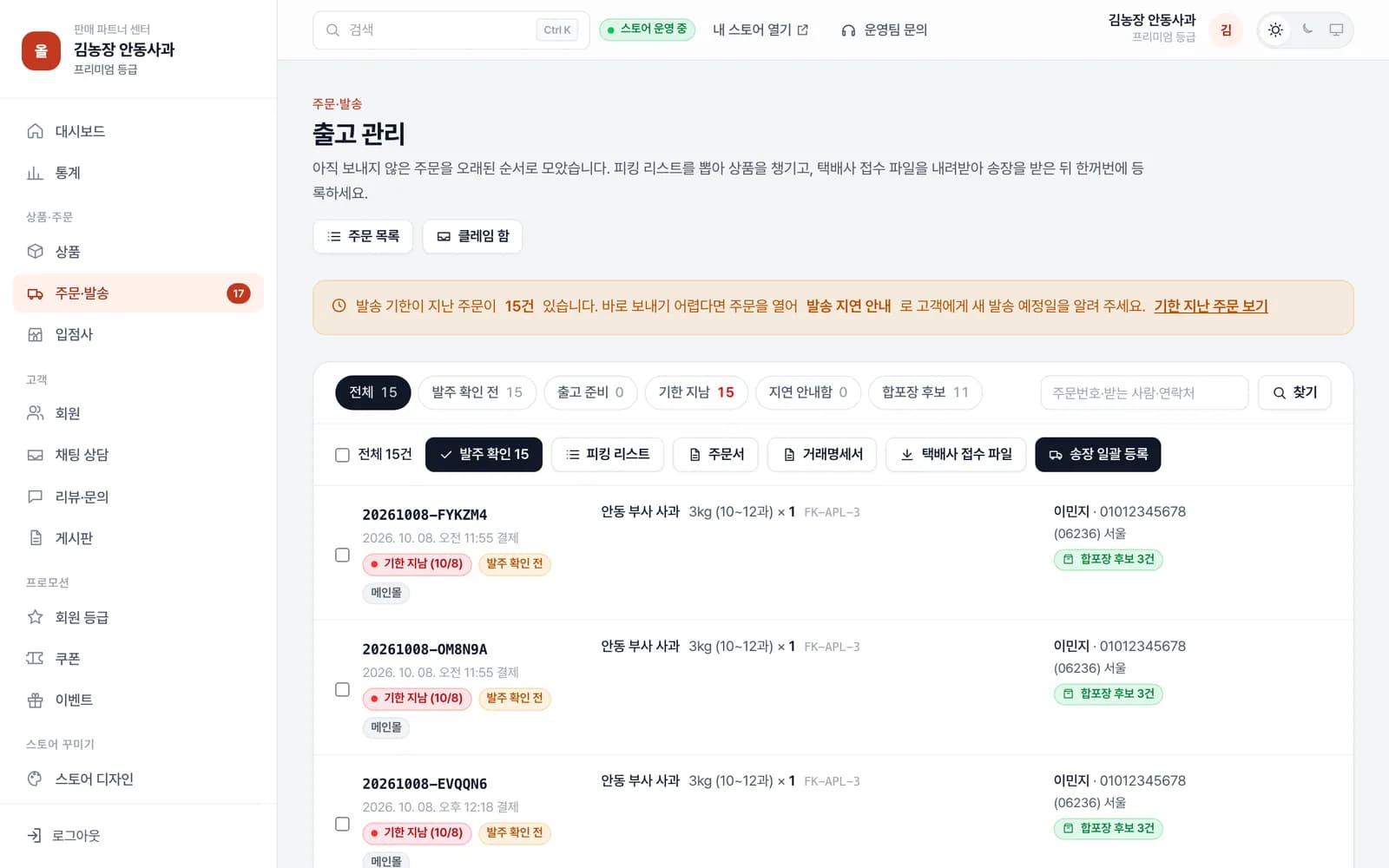
Orders not yet shipped are listed oldest payment first and split into awaiting confirmation, preparing, past deadline and combined-parcel candidates. The shipping deadline is calculated from the shipping policy's dispatch days and cut-off time and the days off in the dispatch calendar.

  • Print picking lists, order sheets and transaction statements (A4)
  • Carrier booking files: a default layout and CSV column orders for CJ Logistics, Lotte, Hanjin, Korea Post and Logen
  • Bulk tracking upload: an order number, carrier and tracking number file, or the file the carrier returns
  • Orders with the same recipient and address grouped as combined-parcel candidates
  • Store pickup orders carry a ‘Store pickup’ badge and are left out of carrier booking files and bulk tracking upload

Ship-from and return addresses

Under shipping policies › ship-from and return addresses, register up to 20 places of each kind — where products ship from and where returns and exchanges come back — and pick a default for each. Addresses are entered with postcode search.

  • Default return address: shown in the customer's return and exchange instructions and order details
  • Default ship-from address: the sender on printed labels, statements and courier booking files, and on the commercial invoice of overseas orders
  • Vendors manage their own addresses in vendor mode, and vendor products point customers to the vendor's addresses

Shipping fee policies

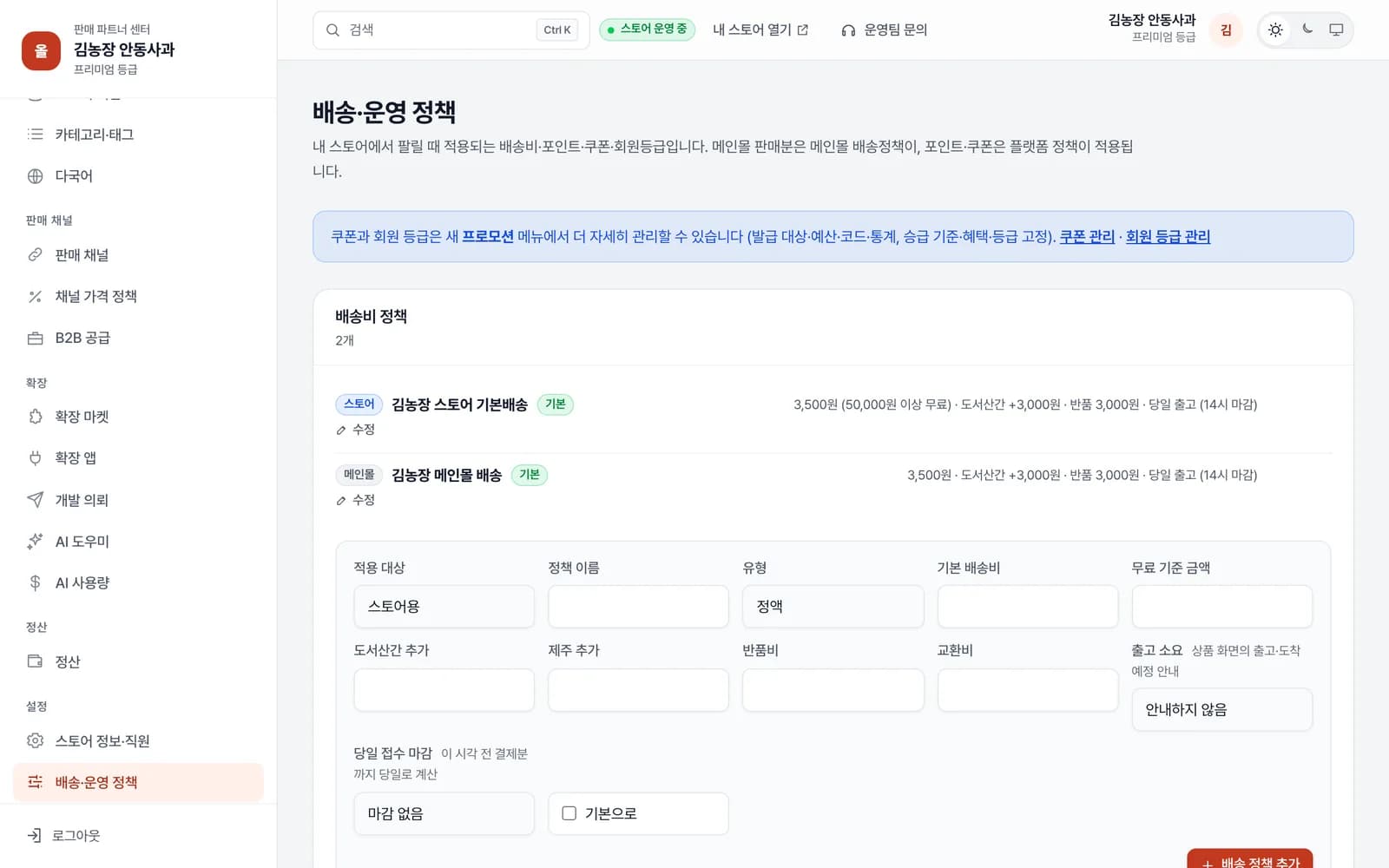
Under shipping and operations policies, create several shipping fee policies for your store and for the marketplace and choose a default. The types are free, flat, free over a set amount and by quantity (a fee for each band of the bundle's total quantity, up to 10 bands — beyond the last band the last band's fee applies), and a new policy's amounts are filled in with defaults set by the operations team (base fee KRW 3,000, remote-area surcharge KRW 3,000, return fee KRW 3,000, exchange fee KRW 6,000).

  • Add a regional surcharge table by postcode prefix with up to 200 rows (paste from Excel or upload a CSV); a matching row replaces the Jeju and remote-area surcharges. Otherwise Jeju uses the Jeju surcharge (or the remote-area amount if left empty) and other remote areas use the remote-area surcharge — worked out from the delivery postcode and added at checkout
  • Set a free shipping event period (start and end, Korea time) and the base fee is KRW 0 during it (regional surcharges still apply); the product page, cart and checkout show the event
  • Items from the same seller ship as one bundle and pay one shipping fee; if a bundle mixes policies, the most expensive one applies. Turn bundling off and each item's fee is added separately
  • The cart shows, for each seller's bundle, how much more is needed for free shipping, with a progress bar
  • Enter dispatch days and a same-day cut-off time, and the product page shows the expected dispatch and arrival dates

Choosing a delivery method and tracking

When shipping, pick the delivery method (carrier) from a list and enter the tracking number. The list is grouped into parcel, freight, direct delivery and pickup, and international, with the method you used last already selected. The operations team manages the list under admin console › settings › carriers (name, on or off, order, tracking page address, adding new carriers), and changes reach every screen as soon as they are saved.

  • Parcel: eleven domestic carriers plus international shipping (EMS, K-Packet, DHL, FedEx, UPS). The customer's order page shows the carrier and a tracking link
  • Freight and installation delivery: large furniture and appliances; enter a waybill number if there is one
  • Direct delivery and direct pickup: when you deliver it yourself or the customer collects it, ship without a tracking number and mark it delivered once handed over. These are never tracked, and the customer sees a note instead of a tracking number
  • A carrier not on the list can be typed in by name as ‘other carrier’
  • Tracking: for carriers that support automatic lookup, the tracking history builds up on the order page and the order is marked delivered once delivery is confirmed. Both seller and customer can ask again with the ‘Track package’ button (once every two minutes per tracking number)
  • Deliveries that cannot be tracked automatically (freight, other, direct delivery and so on) count as delivered 7 days after dispatch

Store pickup

Turn it on under shipping policies › store pickup and enter the pickup location's name, address and phone (required) plus opening hours, a note for customers and preparation days (optional); customers can then choose ‘Delivery’ or ‘Store pickup’ on your store's checkout. Store pickup has no shipping fee (no remote-area surcharge either, and the amount is recalculated on the server).

  • Available when it is a domestic order on your own store and every item is one you ship yourself. Marketplace and international orders, or a cart with any vendor item, another seller's item, a supplier drop-ship item or a purchase-agency item, can only be delivered (checkout shows why)
  • Updates go to the orderer's name and phone instead of a delivery address, and the order keeps the pickup location as it was, so later changes to the settings do not alter orders already placed
  • With preparation days set, the order-complete page and order details show the expected ready date
  • Handling: ‘Ready for pickup’ on the order page (shipped as direct pickup without a tracking number), then ‘Picked up by customer’ (= delivered) once collected. The customer sees the statuses ready for pickup and picked up
  • Email and SMS notices with the pickup location and hours go out on payment and when the order is ready (English and Japanese emails included; stores can rewrite the text)
  • Returns and exchanges default to the customer bringing the item back to the store, so the return shipping fee is pre-filled as zero and can be changed when handling it

Instant cancellation before confirmation

If the seller has not yet confirmed a paid order, the customer can cancel it right away from the order history and is refunded to the original payment method, with nothing for the seller to do. After confirmation, it arrives as a cancellation request in the claims inbox.

Order notes and shipping-delay notices

Keep notes and tags on each order that only the seller sees. When shipping is late, enter the reason and the new dispatch date and notify the customer by email and SMS; it also appears on the customer's order page.

Claims inbox

Cancellation, return and exchange requests are gathered by how close their handling deadline is. Requests can be approved or declined from the list, with saved replies. Requests from external channels are handled on the same screen where the channel supports it. Customers can cancel, return or exchange just part of the quantity they ordered, and the refund is at most what was actually paid for that quantity (purchase-agency items can only be requested for the whole remaining quantity).

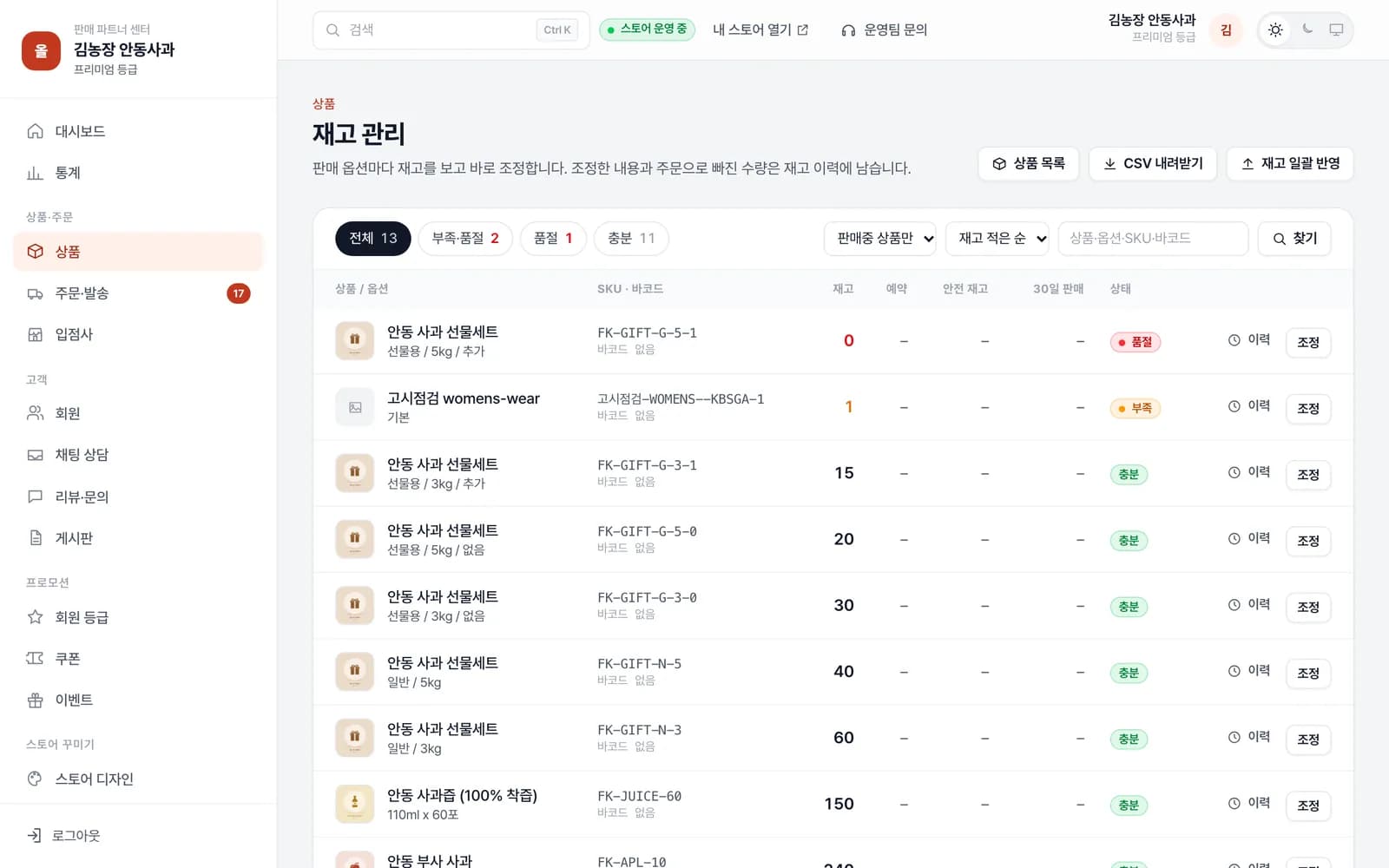
Stock management

Per option, see stock, quantity reserved by orders, safety stock, sales in the last 30 days and the number of people waiting for a restock alert. Adjustments (receive, deduct, count) are kept in a stock history with the reason and the person, and stock can be updated in bulk by CSV.

Work notices and search

Choose whether to be emailed about new orders, claims, product inquiries, low stock and a summary of today's work. The top search finds orders, products and members at once.

Stock management in the partner center
10 things to know
  • Carrier booking files are a best-effort fit: layouts differ per carrier and contract, so columns may need adjusting. Nothing is booked with the carrier's system automatically.
  • Shipping-delay notices are not sent to external sales channels; notify those customers through the channel.
  • SMS and KakaoTalk notifications go out only when a sending account is configured in the operating environment. Otherwise only a record is kept.
  • A transaction statement does not replace a tax invoice or cash receipt.
  • Expected dispatch and arrival dates skip weekends and Korean public holidays automatically; only company days off go into the dispatch calendar.
  • Listings on sales channels (open markets) use the ship-from and return addresses registered on that channel, not these.
  • Automatic tracking works only when the operations team has set up the tracking connection and the carrier supports automatic lookup. Otherwise only the tracking link is shown and you mark delivery yourself. A delivery method the operations team has switched off cannot be chosen for new shipments, but tracking numbers already entered keep showing with their links.
  • Store pickup orders are left out of the automatic delivery of untracked shipments. Press ‘Picked up by customer’ when the customer actually collects it (or, if the operations team has set a number of days for store pickup, it is completed automatically after that).
  • KakaoTalk notification texts for store pickup are prepared as drafts; until the operations team has the templates approved and switches them on, the notices go out by SMS.
  • For sales channel orders, direct delivery and direct pickup are passed to the channel only where the channel accepts shipping without a tracking number. Otherwise handle it in the channel's seller center.

Promotions and gifts

Gifts by order amount, and discount codes right in the cart

Run member grades, coupons, events and time sales per store, and give gifts by order amount. Seller partners set this up for their store in the partner center; the operations team does the same for the marketplace in the admin console.

Gifts with purchase

Create a promotion under partner center › promotions › gifts and set the gifts for each amount tier. For example: gift A from KRW 500,000, and a choice of B or C from KRW 1,000,000.

  • Per tier: the minimum amount, how many gifts the customer picks, and several gifts (name, photo, linked product, stock, on or off)
  • By default only the highest tier reached is given; turn on the option to give every tier reached
  • Draft, active, paused and ended, with start and end times
  • The list and detail pages show how many of each gift went out and recent orders

Qualifying amount

The qualifying amount is the price of the in-scope items minus their share of coupon and member-grade discounts. Shipping is not included and points used are not subtracted. A store's gifts count only that store's own items in orders placed on the store; marketplace gifts count every item in a marketplace order. Store gifts never attach to marketplace orders, and marketplace gifts never attach to store orders.

Reminder at the buy button

With the reminder on, when a customer presses ‘Buy now’ on a product page or ‘Check out’ in the cart and is short of the next tier, a pop-up says how much more to spend to get a gift, once. ‘Continue to checkout’ carries on as before; ‘Keep shopping’ takes them back to the shop.

  • When several promotions apply, only the one with the smallest remaining amount is shown
  • Tiers whose gifts have all run out are not suggested
  • A reminder that was closed or answered does not appear again in the same browser session
  • On a product page it is judged on that product's price, and a store's gift is not suggested for another seller's product

Cart progress bar and choosing at checkout

The cart shows how much is left to the next tier, in the same style as the free-shipping bar (for the selected items, after any coupon confirmed in the cart). The checkout's ‘Gifts’ step shows the tier reached, its gifts and the amount to the next tier, and lets the customer choose where a tier offers a choice. Without a choice, the first gifts still available are used; the order details then show the gifts that come with it.

Gift stock

Set a stock for each gift (leave it empty for no limit) and only that many go out. Stock is taken at the moment the order is created, so simultaneous orders cannot exceed it. If a gift the customer picked runs out in the meantime, checkout asks them to choose again; a default pick switches to another gift in the same tier, and if all are gone the order goes through without a gift.

Shipping and printing

Order details show the gifts to pack, and the shipping queue, picking lists and printed order sheets carry a gift line so nothing is left out of the box. A gift that needs recovering is marked ‘do not pack’.

Cancellations, refunds and gift recovery

If an order is cancelled in full, its gift is cancelled and the stock returns. If a partial cancellation or return brings the remaining qualifying amount below the tier, the gift is flagged ‘gift recovery needed’ with the reason and what to do before or after shipping. The customer is never charged automatically; the seller settles it from the order or the recovery list as recovered, not sent (stock returned) or not recovering.

Discount codes in the cart

Customers enter a discount code in the cart summary and see the discount straight away. It is worked out on the selected items exactly as at checkout, so sign-in, eligible products and minimum order amount all apply, and it is checked again when the selection changes. A confirmed code carries into checkout and applies from the start; if it no longer qualifies by then, checkout recalculates without it and explains why.

Coupons

Under partner center › promotions › coupons, create fixed-amount (KRW), percentage (with an optional maximum discount) or free-shipping coupons. Who gets it (target) and how it reaches them (issue method) are chosen separately, and a coupon can be saved as a draft before it starts. The operations team runs marketplace coupons the same way, separately.

  • Targets: all members, chosen grades, hand-picked members, new members (joined within 30 days), first-order customers (never paid in that store) and birthday members
  • Issue methods: issued by you, downloaded by customers from the coupon zone, automatic at sign-up, automatic on grade-up, automatic every month, automatic in the birthday month, entered as a coupon code, or downloaded during an event
  • Scope: all products, or chosen products and store categories (matching either is enough). ‘Excluded products’ always win, and items sold below list price or on a time sale can be left out
  • Limits: minimum order amount (counted on the eligible items), total issue quantity (first come, first served), coupons per member (1 by default, up to 100), a discount budget (use stops when total discounts reach it), usable for a set number of days after receipt, and a separate start date for use
  • ‘Can be used with the grade discount’ is on by default. Turned off, orders using that coupon lose the member-grade discount and extra points, and the coupon zone, product page and checkout show ‘cannot be combined with the grade discount’
  • Checkout splits coupons into those usable on this order and those that are not, and points out the best one with the grade discount taken into account. With ‘show on product page’ on, eligible product pages show a get-coupon button and the price after the coupon

Cancellations, returns, coupons and points

When a whole order is cancelled or returned, a used coupon comes back for reuse as the same coupon if it is still within its period (the expiry is not extended, and coupons that have expired or ended do not come back). With a partial cancellation or return the coupon stays used and the remaining items keep their discount; only that item's share of the discount goes back to the coupon budget. Points used are returned for the share of the cancelled or returned items, and time-sale limited quantities are restored by the cancelled quantity.

Events

Create six kinds of event under partner center › promotions › events. Once published with a period, an event goes live automatically at its start time, and while live it can be shown in the events area of the store front page. Any event can carry an entry button (one entry per member), and winners are drawn at random from the entrants.

  • Exhibition: choose the products to show and their order
  • Time sale: set an event price or a discount rate and a limited quantity per product. The event price is based on the cheapest option, and other options drop by the same amount. The price shown on product cards, the product page and in the cart is the price charged, and customers see the time and quantity left. Once the limited quantity sells out, the product sells at its normal price
  • Coupon event: linked coupons can be downloaded only while the event is live
  • Check-in: members get points for checking in once a day (from midnight Korean time), plus a one-off bonus of points or a coupon on their Nth day in total. Customers see the days they checked in on a calendar
  • Review event: reviews written during the event earn extra points for text and photo reviews on top of the normal review points
  • General event: announce it with a banner and a description and note how winners will be announced. HTML in the description keeps only allowed tags when saved

Member grades

Create up to 10 grades under partner center › promotions › member grades. The first is the default grade everyone gets on joining; higher grades are reached automatically by spend or number of orders over an evaluation period (by default the last 6 months), with either one or both criteria required. Grades are evaluated once a day, and before running an evaluation by hand you can preview how many members would move up or down.

  • Benefits: a discount rate on all products (applied automatically at checkout), an extra points rate on purchases, free shipping (with an optional minimum order), and monthly, birthday and grade-up coupons
  • Spend is the amount paid minus completed cancellation and return refunds, and orders count only if they still have an item that was not cancelled or returned. Cumulative spend in the member list uses the same rule
  • Upgrades apply at once; downgrades wait for the grace period set on each grade (none by default, up to 12 months). If a refund causes a downgrade, unused grade-up coupons from the grade left behind are withdrawn
  • Manual-only grades (such as VVIP or staff) are never reached automatically; only members assigned on the member page get them. A pinned grade is not changed by automatic evaluation (until the pin's end date, or until you unpin it if no date is set)
  • Customers see each grade's criteria and benefits, their own grade and the spend or orders left to the next grade on the member grade benefits page

Points

Set your store's earning and spending rules in the points policy under shipping and operations policies. The defaults are 1% earned on purchases, a minimum use of 1,000 points, a use unit of 100 points, up to 100% of the order payable with points and a 365-day validity; review, photo-review and sign-up points start at 0 (none). The earn rate cannot exceed the cap the operations team sets for each seller grade, and points past their validity expire automatically. Store points are earned and spent only in that store and never mix with marketplace points, whose policy the operations team sets.

Store member management

See customers who joined your store under partner center › customers › members. The list shows grade, cumulative spend (net of refunds), number of orders and marketing consent; each member's page has their orders, points balance and history, and member notes visible only to your staff (notes can be pinned).

  • Purchase-behaviour groups: buyers, first-time buyers, repeat buyers (2 or more orders), bought in the last 30 days, lapsed (last purchase more than 90 days ago), members with no purchase, and big spenders (by default KRW 300,000 or more in total; the threshold is set by the operations team)
  • Select several members to change grade, issue a coupon, grant or deduct points (the reason is shown to the member) or download them as a spreadsheet in one go. Afterwards each member shows success or the reason it failed
9 things to know
  • A linked product is for the photo and reference only. Product stock is not reduced; gifts are counted against their own stock.
  • You can set how many times a member can receive the gift and which member grades qualify (with member conditions, guest orders do not receive it). Whether a gift recovered or not sent after a partial refund still counts as received is an operations policy (default: it does not count).
  • When a gift needs recovering, whoever ships it (the seller, or the operations team for platform-shipped gifts) gets an email and it stays on the dashboard to-do list. The customer is never charged automatically.
  • By default, a marketplace gift is packed by the seller with the largest in-scope amount in that order. If the operations policy is set to ‘shipped separately by the platform’, sellers do not pack it and the operations team ships it from the gift shipping screen in the admin console with a tracking number (applies to orders placed after the change). Store gifts are always packed by that store.
  • Ended promotions cannot be edited, and a promotion cannot be deleted once any gift has gone out. Stock cannot be set below the number already given, and gift records on past orders stay as they were when a promotion is edited.
  • The cart progress bar and the reminder are previews; the actual gift is decided again when the order is placed.
  • Once a coupon has been issued, its discount type and amount cannot be changed, and ended coupons and events cannot be edited. To run the same terms again, duplicate it and start a new one.
  • A store's time-sale price applies only when buying in that store. The marketplace product page keeps the marketplace price and adds a note that the item is on a time sale in that store, with a link to it.
  • The operations team can see every store's coupons and events and can suspend one with a reason. A suspended coupon or event cannot be reopened by the seller, and lifting the suspension does not restart it automatically.

SMS campaigns and member links

Promotional texts to your own members, and who tapped and what they viewed

Seller partners create campaigns under partner center › customers › SMS campaigns; the operations team does the same for the marketplace under admin console › promotions. Allday Allshopping does not send the texts. Download the spreadsheet of per-member links, upload it to the SMS service you use, and the members who tap their link and the products they then view build up on the campaign page.

Only your own members who agreed

Choose recipients with the same filters as the member list (search, member grade, purchase segment, join date or hand-picked members). On top of that, a fixed condition always applies and cannot be switched off: agreed to promotional texts on that site, has a mobile number, account in good standing, and a member of that site.

  • The preview shows how many match, how many will actually receive a link, and why the rest are left out (no consent, no mobile number)
  • Members of other stores cannot be chosen; marketplace campaigns cover marketplace members only
  • Up to 50,000 members per campaign; running it again gives the same member the same link and code

Per-member links and personal codes

Each member gets a short link just for that campaign (site address/m/code). Links differ per campaign and are recorded only on the address of the site that created the campaign. Opened on another site's address, a link either shows 'not found' (the default) or is forwarded to the creating site's address, depending on the operating policy; either way nothing is recorded on the wrong address. Link a coupon and each member also gets a personal code, which only that member can add to their coupons or enter at checkout.

Message template

Write the message with the placeholders for name, link, code, grade and site, and the message column of the downloaded spreadsheet is filled in with each member's own values.

  • A preview with one member's values and a byte count (up to 90 bytes for a short SMS, up to 2,000 bytes for a long LMS)
  • A reminder when the ad label at the start or the free opt-out instructions that promotional texts need are missing (a warning only; you write the wording)

Download for your SMS service

The file (.xlsx, or CSV) holds the member number, name, mobile number, grade, personal tracking link, personal code and message text. Consent is checked again at the moment of download, so members who opted out after their link was made, or who left or were suspended, are not in the file. Who downloaded how many rows, and when, is kept in the staff activity log.

Click and product-view records

When a member taps the link in their text, the campaign, time, device type and landing page are recorded, and a cookie for that site alone stays in the browser for the campaign's attribution period (1 to 30 days, 7 by default). Only while that cookie is present are the products viewed in that browser (name, product code, time) and category visits recorded against that member.

  • Clicks from bots and messenger link previews, from members who withdrew consent and from suspended accounts are not recorded; they simply go to the landing page
  • A link tapped outside the campaign period goes to the site's home page without a record
  • Visits that did not come through a text link leave no member record, and visit statistics stay anonymous
  • If the operating policy turns on the cookie-consent check, product and category views are recorded only when the visitor accepted analytics in the cookie banner and the browser sends no Global Privacy Control (GPC) signal. Link taps are still counted

Logs by campaign, member and product

The campaign page shows members reached, members who tapped (and the rate), clicks, members who viewed products, product views and category visits, clicks by day, devices, landing pages and the most viewed products. The member list splits members who tapped from those who did not (with mobile numbers masked), and the view log filters by campaign, member, product and period. A member's details show their links, clicks and views in time order.

Text and email consent, separately

Customers agree to or withdraw from promotional texts (SMS) and email separately, at sign-up and in their profile, and can see the date they agreed or opted out. Every change is kept in a history, and closing the account withdraws consent on every site. The seller's member list shows text consent and can filter by it, and member downloads have separate text and email consent columns with the consent time.

Table downloads as spreadsheets

List tables in the consoles can be downloaded as a spreadsheet (.xlsx) as well as CSV. Cells are written as plain text or numbers, so a value starting with ‘=’ never becomes a formula and numbers with a leading zero stay intact. Up to 50,000 rows per download.

7 things to know
  • Allday Allshopping does not send the texts. Sending, delivery results and 080 opt-out lines belong to the SMS service you use; an opt-out received there takes effect only when the customer turns consent off in their profile or an administrator records it.
  • The downloaded file is personal data containing mobile numbers. Delete it once the texts have gone out.
  • Click and view records are deleted after the retention period stated in the privacy policy (an operations policy, one year by default). Per-member links and personal codes stay until the campaign is deleted; deleting it also removes its links, records and any personal codes not yet added (codes already added stay in the member's coupons).
  • The privacy policy's section on usage records automatically lists the SMS link visit records (what is collected, why, how long and the cookie used).
  • Records follow the browser in which the link was tapped. If someone else uses the same browser, their views may be recorded against the member who received the link.
  • A link opens only on its campaign's site address; on any other site address it shows as not found.
  • Email consent is collected and shown only; there is no email campaign sending.

Chat support

Ask while looking at a product, answer from the inbox

The marketplace and every store have chat. The product or order the customer was looking at is attached to the conversation, so the seller can answer without asking what the question is about.

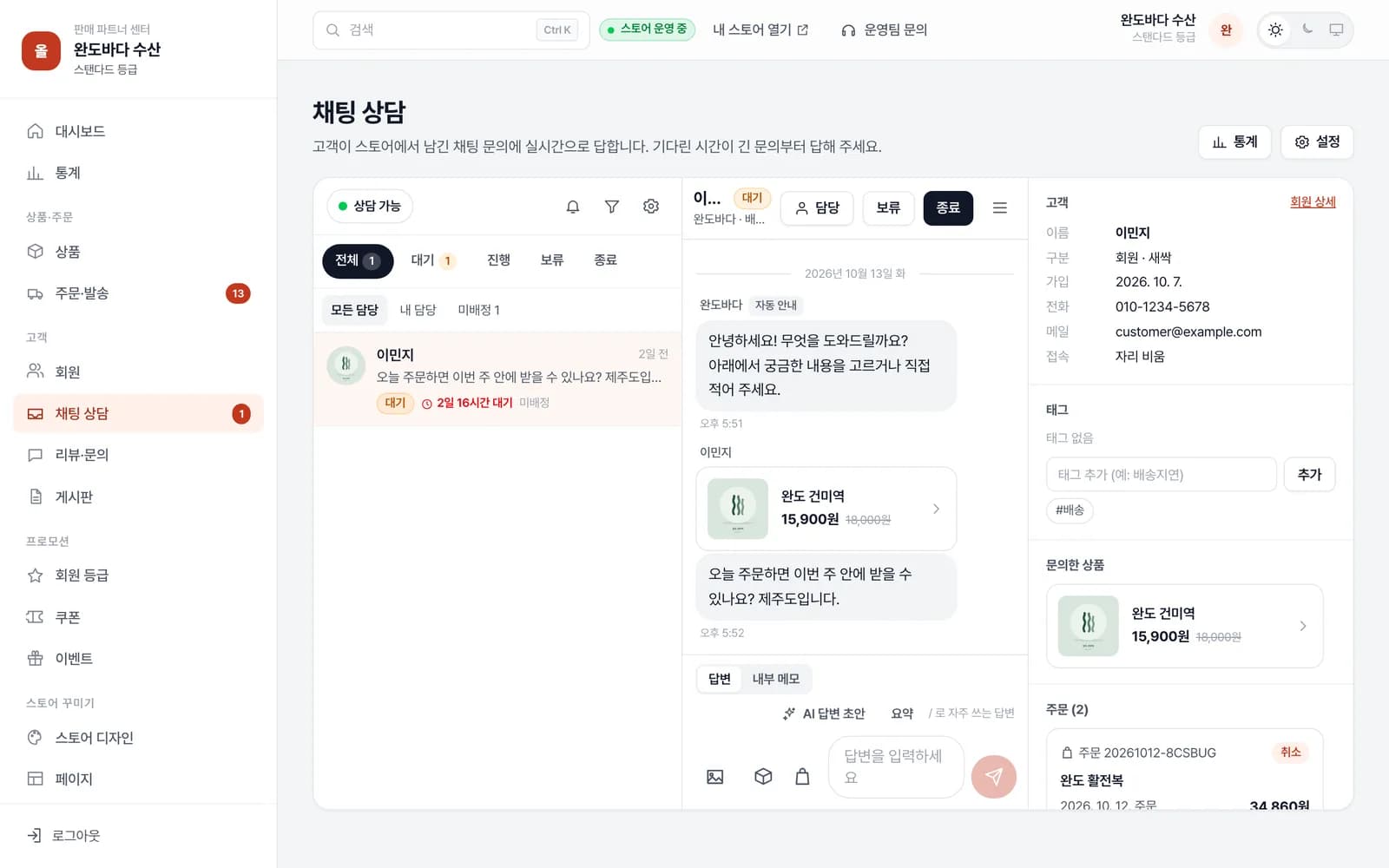
Chat inbox in the partner center

For customers

Chat starts from the button in the corner of the screen, from a product page, or from an order's detail page.

  • A card with the product, chosen option and price, or the order, is attached
  • Guests can start a chat; after sign-in the conversations from that browser follow the account
  • Photo attachments, support hours and away notices, read receipts, and a satisfaction rating after the chat ends

Inbox

Seller partners have an inbox in the partner center, vendors in vendor mode, and the operations team in the admin console.

  • Waiting time, assignment and hand-over, tags, hold and close
  • Saved replies, sending product cards, attaching orders, and internal notes seen only by staff
  • Customer panel: member grade, the product asked about, orders and earlier conversations
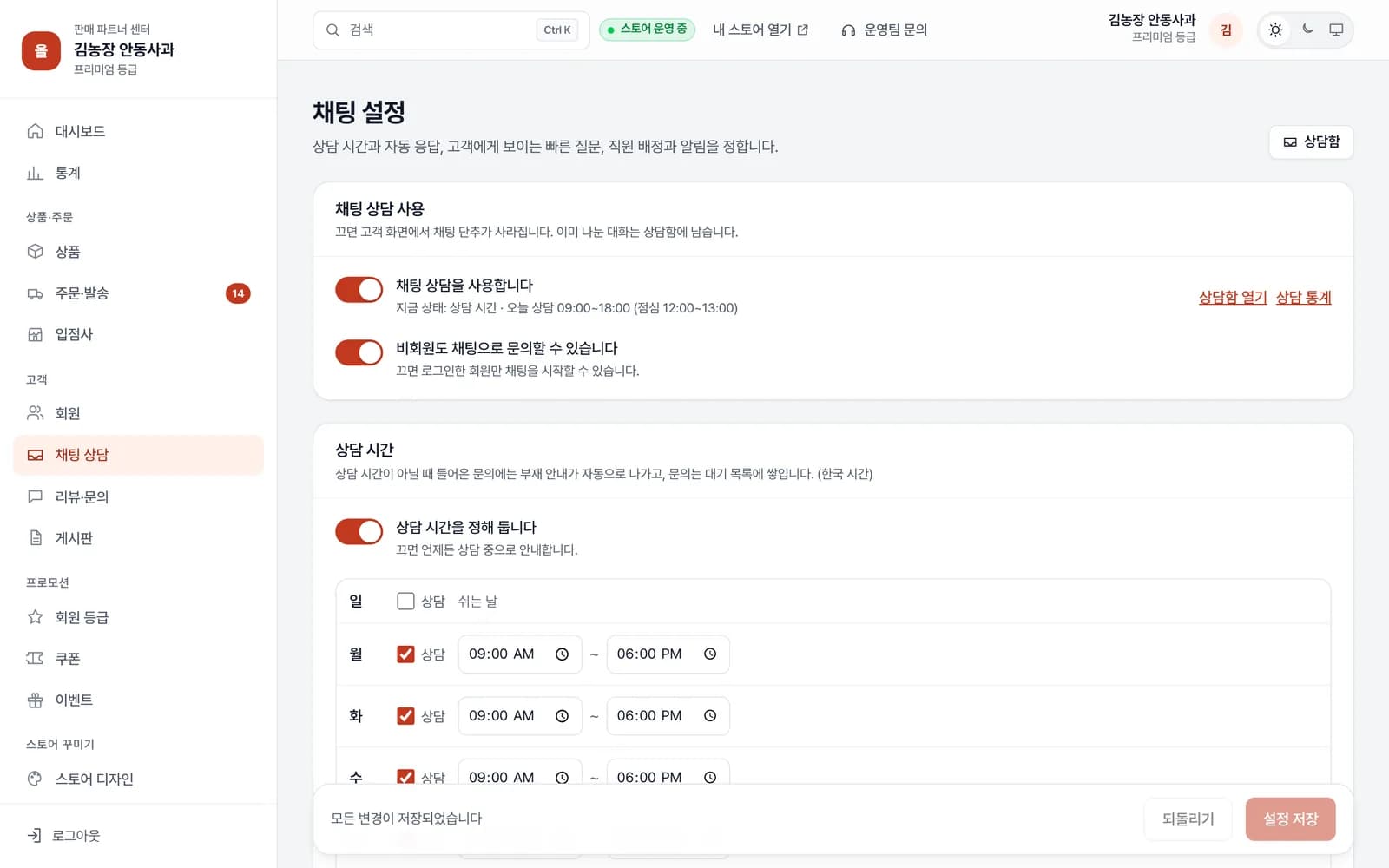
  • Settings for support hours, away notices and quick questions; blocking and reporting customers

Message the operations team

From the top of the partner center (including vendor mode), the affiliate center, the B2B portal and the developer center, chat with the Allday Allshopping operations team. A count appears on the button when a reply arrives, and an email is sent too.

External integration

With the store's consent, an extension app can read and answer conversations through the chat API and receive webhooks for new conversations, new messages, assignment, closing and ratings. Use it to attach an external helpdesk or an auto-responder; messages sent by an auto-responder are labelled as automatic replies on the customer's screen.

Inquiry types and automated replies

Each store chooses which automated replies to use. Customer questions are compared with the store's inquiry types (keywords and example questions), and for each type the store decides whether a reply is left as a draft for an agent or sent right away. Automated replies are labelled ‘Automated reply’; customers can always ask for an agent and rate replies with 👍/👎.

  • Fixed answers and lookups (the customer's own order status, shipping fee, delivery time, exchanges/returns, chat hours) are free
  • AI answers use only the store's own information (shipping policy, FAQ, the product being viewed), show their sources, and are deducted from prepaid AI credits each time; refund, cancellation or compensation requests and out-of-scope questions are handed to an agent (no charge), and AI answers stop when the monthly chat AI budget is reached
  • New AI-written answers are reviewed by staff before sending by default. A store can switch to sending them straight away, for the whole desk or per inquiry type
  • Answers approved by an agent are reused for later questions of the same type, with no AI cost
  • Chat analysis groups past conversations into frequent questions after removing personal details (charged per conversation, with an estimate first) and turns them into inquiry types in one step

Safety and operations

Card numbers and resident registration numbers written in a chat are masked before they are stored, and numbers that look like bank account numbers are masked on screen; only store staff and operators can open the original, and doing so is logged. Operators must state a reason to open a store's conversations, and that is logged as well. There are rate limits and a retention period.

Reviews, questions and boards

Customer care outside chat happens under partner center › customers › reviews and questions, and boards. Unanswered product questions and reviews without a reply are gathered in one place, and similar ones can be selected and given the same answer or reply in one go (it is added only where there is none yet). Click the answer box to pick a saved reply.

  • Answering a store question emails the customer, and answers to questions that came from a sales channel are sent back to that channel
  • By default only the operations team can hide reviews; sellers can do so only if the operations policy allows it. Hidden reviews disappear from customer pages and the average rating
  • Boards: create notice, FAQ, question and gallery boards for your store, make posts public, hidden or pinned, and answer waiting questions straight away
  • Customers write board posts and comments (secret posts are seen only by the author and the store) and delete their own posts. A product question with no answer yet can be deleted by the customer
Chat settings in the partner center: chat on or off, guest chat and support hours by weekday
6 things to know
  • The AI assistant's draft replies and summaries work only when it is connected in the operating environment. Its real responses in a connected environment have not been verified.
  • There are no mobile push notifications. New inquiries are signalled by sound and a count in an open inbox and by email (and SMS or KakaoTalk where configured).
  • Webhooks are delivered at intervals of up to one minute. Integrations that must react within seconds should also use the real-time notification connection.
  • Chat on a store with a connected custom domain is built to work the same way as on the store address, but it has not been verified on a real connected domain.
  • Operations-team chat belongs to the account: another staff member of the same store cannot pick it up.
  • The customer chat window's buttons and messages follow the store's 7 languages, while the agent and console screens are in Korean, and the welcome and away messages and quick questions the store writes are shown as written.

See it on screen

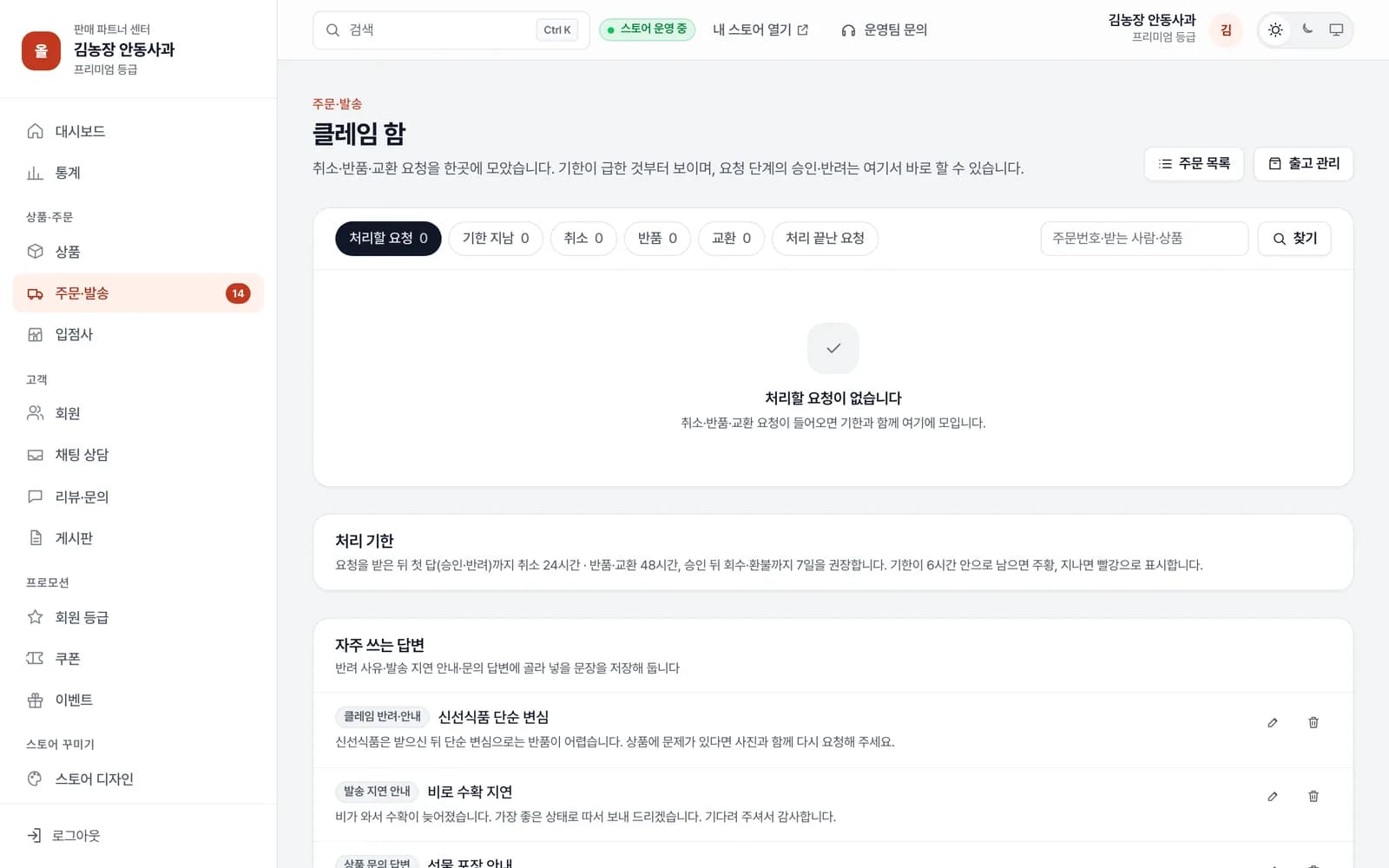
Real partner-center screens with example data. The numbers match the notes below.

The shipping screen: overdue order warning, status chips, print, carrier file and bulk tracking upload buttons, and combined-shipping candidates
  1. Deadline warning — Shows how many orders are past their dispatch deadline and suggests sending a delay notice with a new date when you can't ship right away.
  2. Filter by status — Before confirmation, ready to ship, overdue, delay notice sent, combined-shipping candidates.
  3. Printing and carrier files — Print pick lists, order sheets and statements on A4, and download carrier booking files in each carrier's column order.
  4. Bulk tracking numbers — Upload a file of order numbers, carriers and tracking numbers, or the file the carrier returned, to ship many orders at once; customers are notified.
  5. Combined shipping — Orders with the same recipient and address are grouped as candidates.
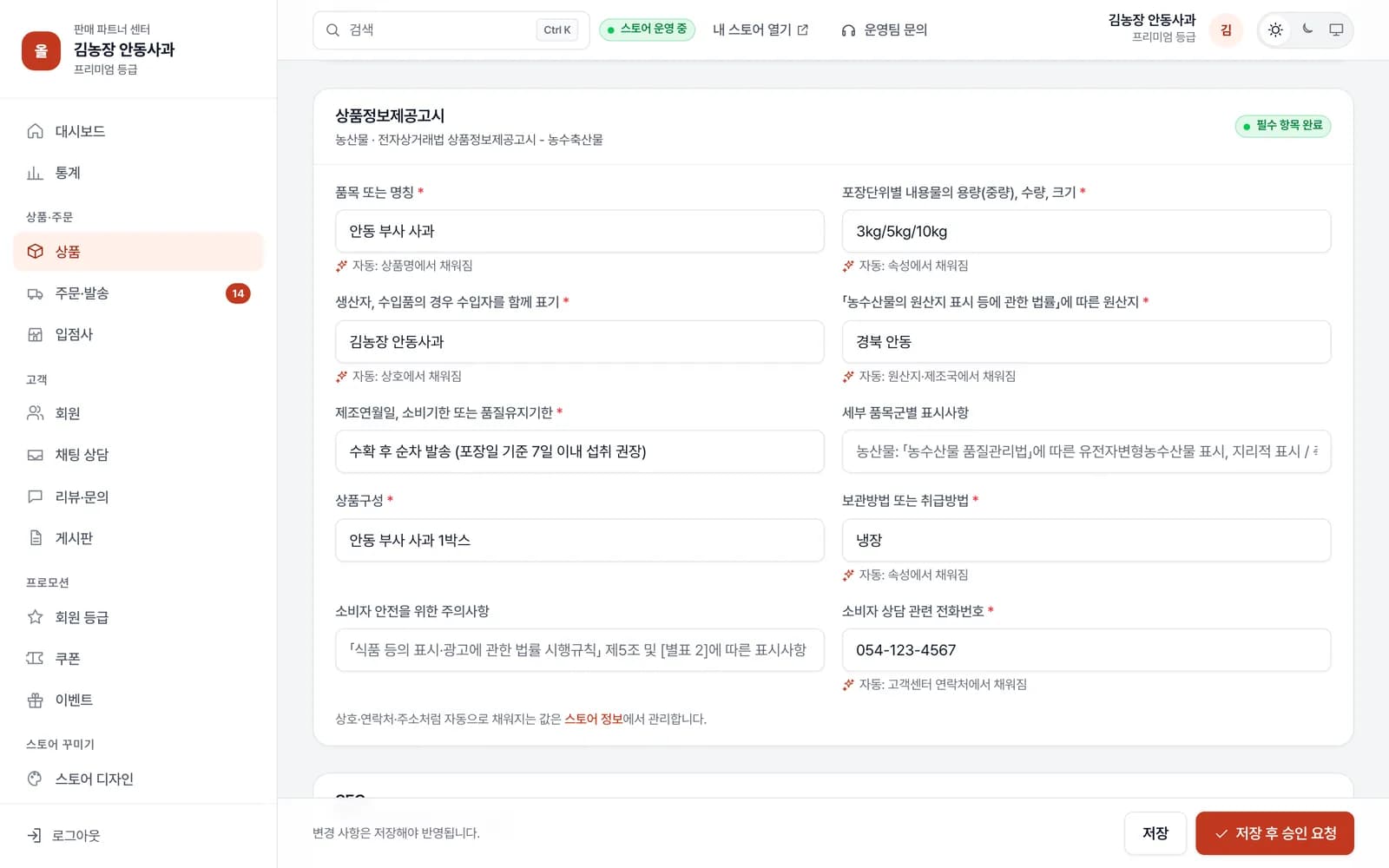
The product information disclosure section of the product form: disclosure type picked from the category, auto-filled values and a 'required fields complete' badge
  1. Disclosure type picked for you — The form that matches the product category (here: agricultural, fishery and livestock products) is chosen.
  2. Required fields check — Shows how many required fields are empty and turns into 'required fields complete' when done.
  3. Known values filled in — Values come from the product name, attributes, business name, origin and customer-service number; each field says where it came from.
  4. Save and request approval — Depending on your grade, products go live after review by the operations team or immediately.
Inquiry types and auto-reply settings, and how an automatic reply looks in the customer chat

Illustration · follows the real screen layout

Inquiry types

  • Shipping feeInformation lookup · Shipping fee (from the shipping policy)Send automatically
  • How to exchange or returnInformation lookup · Exchange and return policy (shipping policy)Send automatically
  • Storage questionAI answer · Answers only from store information (shipping policy, FAQ, the product being viewed)Agent reviews before sending
  • Refund requestClassify only (no auto-reply) · Handed to an agentDraft mode

Customer chat

How much is shipping?

Automatic replyAnswers with the base fee, free-shipping threshold and remote-area surcharge exactly as written in the shipping policy.

I want a refund

Agent handoffLet me connect you to an agent for an accurate answer.
The claims inbox: requests to handle, handling deadlines and saved replies
Shipping policies for the store and the marketplace: remote-area and Jeju surcharges, return and exchange fees, dispatch days and cut-off time

How you use it

Step by step, using the real menu names.

List one new product and ship the first order

  1. Products › new — choose a category and its attribute fields and disclosure form appear
  2. Price, options, stock — enter price and stock per option and upload photos
  3. Where it shows — marketplace and my store, my store only, or marketplace only
  4. Save and request approval — it goes live after review or immediately, by grade
  5. When an order arrives — confirm it in shipping → enter the tracking number → the customer is notified automatically

Result: One product shows on both the marketplace and your store, and orders are handled on a single shipping screen.

Handle a return request

  1. Claims — open requests sorted by deadline
  2. Approve or reject — insert a saved reply and note the reason
  3. Collect and check — finish once the item is back
  4. Refund — orders paid on Allday Allshopping are refunded to the payment method; after settlement, the amount comes off the next statement

Result: Requests from supported external channels are handled on the same screen.

Handle one store pickup order

  1. Shipping policies › store pickup — turn it on and enter the pickup location's name, address and phone, opening hours and preparation days
  2. Customer order — choosing ‘Store pickup’ at your store's checkout means no shipping fee, and the pickup details are sent by email and SMS
  3. Shipping queue — open the order with the ‘Store pickup’ badge and press ‘Ready for pickup’; the customer is told it is ready
  4. Customer visit — hand over the item and press ‘Picked up by customer’ on the item line

Result: Store pickup orders are not part of carrier booking files, bulk tracking upload or tracking, and once picked up they are confirmed and settled like any other order.

Set up gifts at KRW 500,000 and 1,000,000

  1. Promotions › gifts › new — enter a name and dates and turn on the buy-button reminder
  2. Tiers — gift A from KRW 500,000; gifts B and C from KRW 1,000,000, with the customer picking one
  3. Stock — enter how many of each gift you have (leave empty for no limit)
  4. Create and start — the cart shows how much is left to the next tier, and customers who press ‘Buy now’ or ‘Check out’ while short see the reminder once
  5. Shipping — the gift the customer chose at checkout appears as a gift line on picking lists and printed order sheets

Result: The qualifying amount is the item total after coupon and member-grade discounts, without shipping. If a partial refund drops an order below its tier, the gift is flagged as needing recovery; nothing is charged automatically.

Text a coupon to regular members and see who responds

  1. Customers › SMS campaigns › new — set a name, landing path and dates, and link a coupon to give each member a personal code
  2. Message — start with the ad label, add the name, link and code placeholders and the free opt-out instructions, then check the byte count and the preview with one member's values
  3. Choose recipients — narrow by grade, purchase segment or join date; the preview shows how many will actually receive a link and why others are left out (no consent, no mobile number). Make the links
  4. Download the spreadsheet — upload the file with per-member links, personal codes and message text to the SMS service you use, then delete the file once sent
  5. Report and view log — see the share of members who tapped, clicks by day and the most viewed products, and check the lists of members who tapped and who did not, with each member's views

Result: Links are made only for your own members who agreed to promotional texts, and anyone who opted out in the meantime is left out at download. A personal code works only for the member it was made for.

Upload 2,000 products from one spreadsheet

  1. Products › bulk upload and edit — download the template. The guide sheet explains each column and whether it is required, and the lists sheet holds categories, brands and your shipping-fee policies
  2. Fill it in — one option per row, products grouped by product key, and category, VAT type, visibility and shipping-fee policy picked from drop-downs. Put photos in the main image and additional image 1 to 9 columns as image addresses
  3. Upload and check — the file is checked and nothing is saved. Progress is shown, and it carries on if you close the page
  4. Review — check the expected new and updated products, errors, warnings and the preview of the first products. For products with errors, the error report spreadsheet gives row numbers and reasons, so you can fix them and upload again
  5. Apply — products without errors are saved in batches, and photos are copied to your storage with thumbnails and resized versions. New products come in as drafts and go through approval
  6. Later edits — export your products in the same format, change prices or stock, and upload it again; everything is applied as updates

Result: The default limits are 50MB, 50,000 rows and 20,000 products per file. Jobs waiting for review or with failures show under ‘to do now’ on the dashboard, and the operations team can also upload on a store's behalf.

List a product under a brand that is not in the list yet

  1. Products › new — choose a category with a brand field and type part of the name in the brand field
  2. If the brand is listed, pick it. If a brand with the same name exists (including spellings that differ only in case or spacing), the product links to that brand
  3. If it is not listed, request it as a new brand: it is picked straight away as pending approval and you can save the product
  4. Operations team approval — the request shows up as a brand awaiting approval in the admin console to-do list and goes live once approved
  5. Once live — the product appears in the marketplace brand directory and on the brand page, and the product page gets a brand link

Result: The product sells as usual before approval; only the brand directory and brand link wait for it. If the same brand comes in under another spelling, the operations team merges them.

Let auto-replies take frequent questions

  1. Chat › inquiry types — create a type such as 'shipping fee' with keywords and example questions
  2. Answer type — fixed answer, information lookup (shipping fee, dispatch time, returns, support hours, the customer's own order status) or AI answer
  3. Sending — start in draft mode (an agent reviews), switch to automatic once you trust it
  4. Chat analysis — group past chats into frequent questions after masking personal data and create types in one go

Result: Fixed answers and lookups are free, and refund or cancellation requests always go to an agent.

Frequently asked questions

See all questions

How many products can I list?

There is no set cap on the number of products. Photos and files count towards your grade's storage, and a bulk upload takes up to 50MB, 50,000 rows and 20,000 products per file by default; the operations team can adjust the limits.

Can I upload products in bulk?

Yes. The template sheet has an explanation row and example rows, and VAT type, visibility and yes/no fields are written in Korean. An upload is checked first; nothing is saved until you review the expected new and updated products, errors and warnings and press Apply. Applying runs in the background in batches, so it carries on if you close the page, and the error report spreadsheet gives row numbers. Rows with an existing SKU update that product; new SKUs create new products (drafts that go through approval), and photos written as image addresses are copied into your storage.

How do I set shipping fees?

Under shipping policies you create separate policies for your store and the marketplace: base fee, free-shipping threshold, remote-area and Jeju surcharges, return and exchange fees, dispatch days and same-day cut-off time. With dispatch days set, product pages show estimated dispatch and arrival dates.

How is the dispatch deadline worked out?

From the payment time, using the dispatch days and cut-off time in the shipping policy and the days off in your dispatch calendar. If unset, the operating policy's default applies (currently a 2pm cut-off plus two business days). Weekends and Korean public holidays are skipped automatically; only company days off go into the dispatch calendar.

Is there a direct link to couriers?

When shipping you pick the delivery method from a list the operations team manages (11 domestic couriers, international shipping, freight, direct delivery, direct pickup) and enter the tracking number. For couriers that support automatic lookup, the tracking history builds up on the order and it is marked delivered once delivery is confirmed. Booking works by downloading a carrier file (CSV) and uploading it to the courier's system; nothing is booked with the courier automatically.

How long can customers request returns?

The customer screen says within 7 days of delivery and before purchase confirmation, with the return and exchange fees from your shipping policy. Fresh food and made-to-order items may be restricted by law and store policy.

Where do I answer customers?

In the chat inbox and the reviews and inquiries screen. A chat arrives with the product or order the customer was looking at attached. Inquiries from supported connected channels also land in reviews and inquiries.

Do auto-replies cost anything?

Fixed answers and information lookups are free. AI answers come out of prepaid credits each time, and reusing an answer an agent approved for the same type costs nothing. They stop when the monthly chat AI budget is reached.

Can I share the work with staff?

Invite staff by email; their role and menu-level permissions apply when they accept. For chat you choose who can answer and assign conversations manually or in turn.

Where do I set the address for returns?

Under shipping policies › ship-from and return addresses, add several addresses for where you ship from and where returns and exchanges come back, and pick a default for each. The default return address appears in the customer's return and exchange instructions and order details; the default ship-from address goes into printed labels, statements, courier booking files and the commercial invoice of overseas orders. Vendor products use the addresses the vendor registered, and sales channels use the address registered on that channel.

Not sure where to start?

Pick what you want to do and we will point you to the right application. Ask the support desk if anything is unclear.