B2B buyer guide
Buy at wholesale and sell in your own shop. The supplying partner ships
A B2B buyer picks supply products offered by Allday Allshopping partners and lists them in their own shop. When an order comes in, it is passed to Allday Allshopping and the supplying partner ships directly to the buyer's customer.
Who this is for
- Sellers who run their own shop or a Smart Store
- Businesses that want a wider range without stock or a warehouse
- Shop teams that want to sync products and orders by feed or API
How it works
Step 1
Submit the application
Enter your account, business name, business details and shop address, and attach your business registration certificate.
Step 2
Review by the operations team
A price tier, an additional discount rate and a credit limit are set at approval.
Step 3
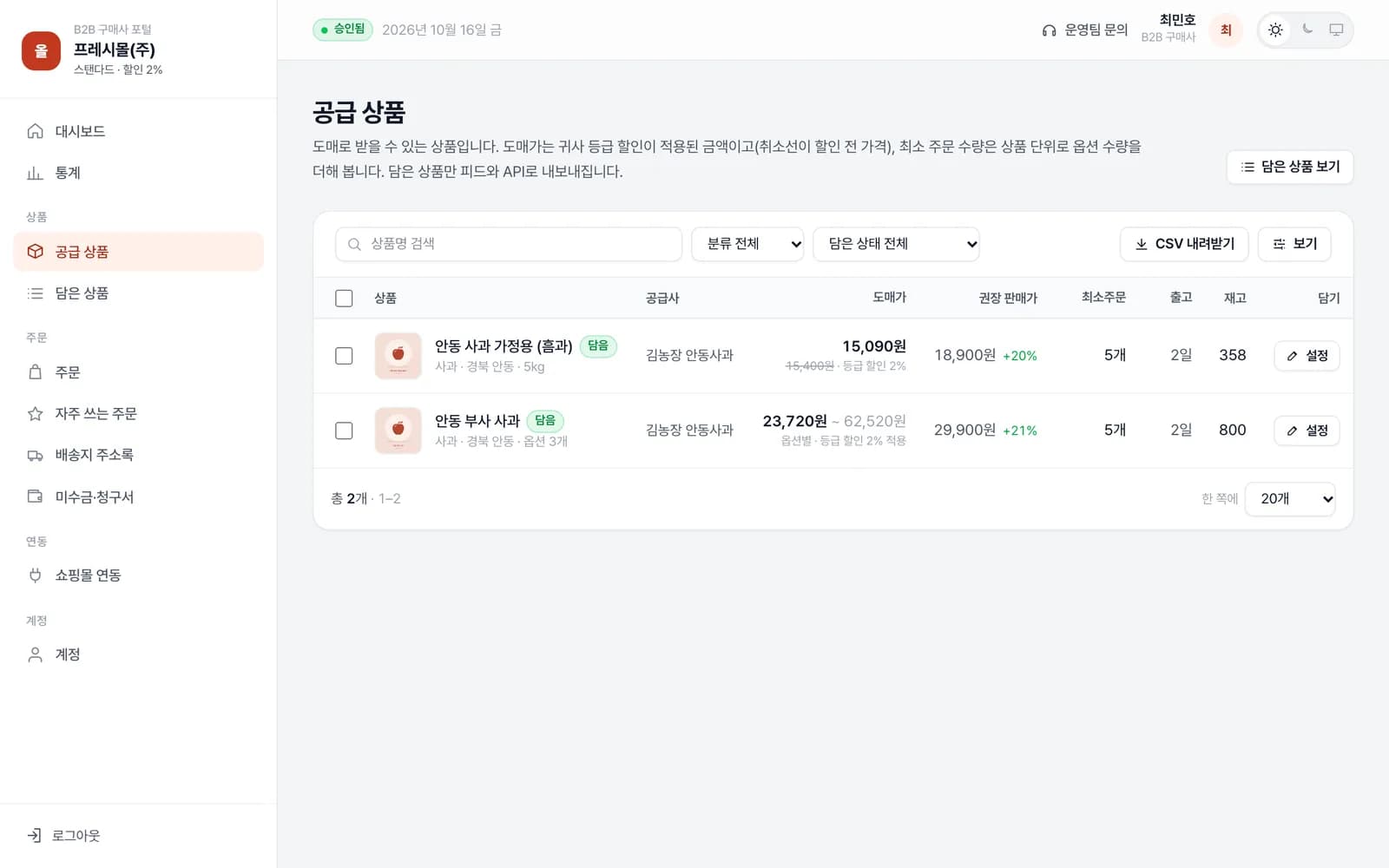
Select supply products
In the B2B portal, check the wholesale price, minimum order quantity and lead time and select the products to sell.
Step 4
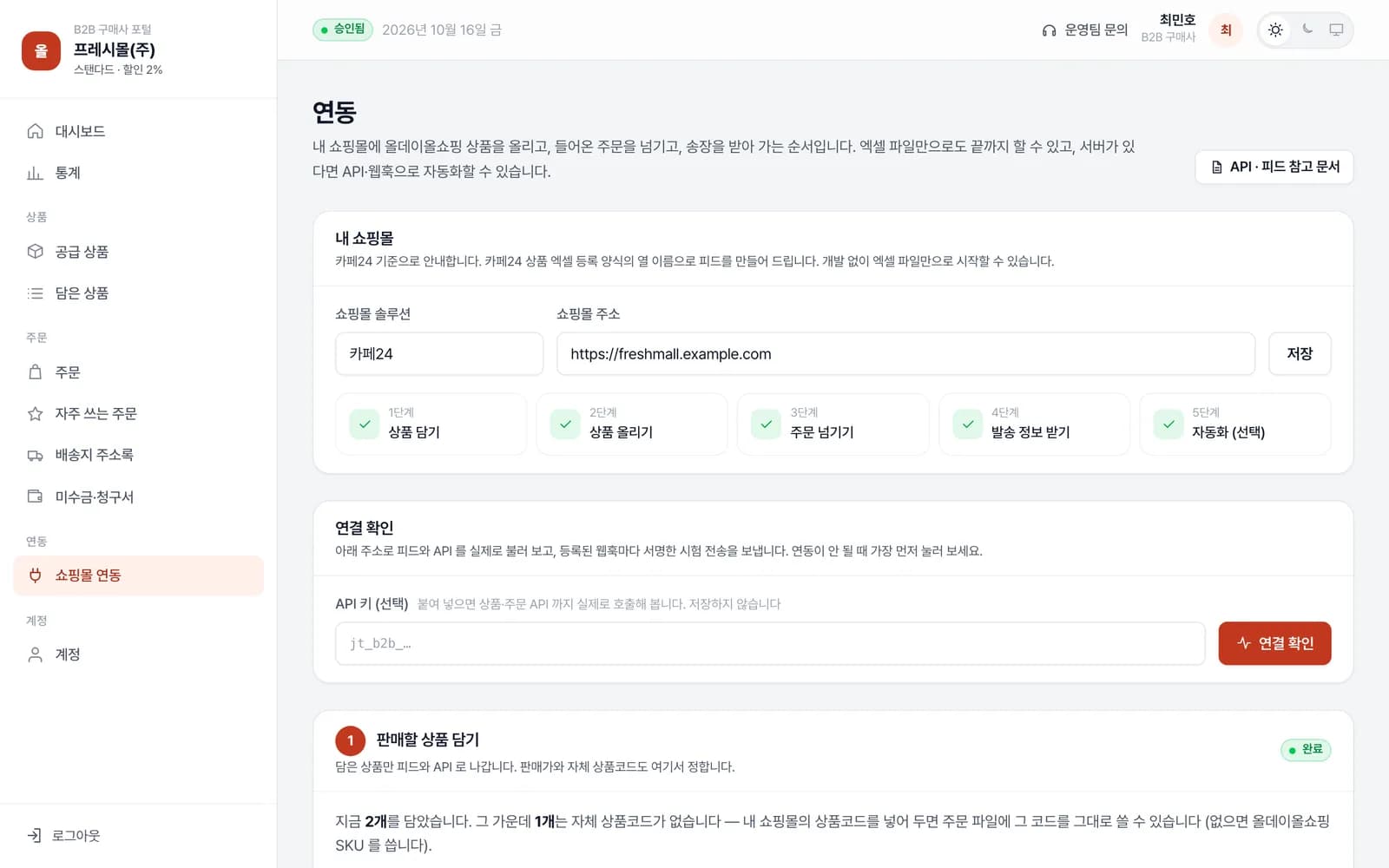
Connect to your shop
The portal's integration guide walks through the steps for the shop platform you use. Download the selected products as a JSON, CSV or Excel feed or through the API and list them in your shop, then run the connection test to confirm that the feed, API and webhooks really work. A Cafe24 format is provided. Stock and price changes can be received by webhook. The guide is in Korean.
Step 5
Place and pay for orders
Enter orders from your shop in the portal or pass them by Excel or CSV file or API. A file is validated first, showing errors line by line, and is accepted only after you confirm. Orders within the credit limit are placed right away; prepay buyers and orders over the limit are placed once paid in the portal. The supplying partner ships to the customer and the tracking number comes back.
Step 6
Check and pay invoices
Amounts bought on credit are grouped into invoices. See invoices and the ledger in the portal and pay through the portal or by reporting a bank transfer. Paying restores that much of the limit.
What you can do once approved
Feed, API and webhooks
Sync with your shop using a product feed address, an API key and stock, price, shipment and cancellation webhooks. Each webhook can be test-sent and has a log of recent deliveries.
Orders and tracking
Place orders with your own shop's order number and check per-item status, tracking numbers and the carrier's tracking link. Filter the order list by search, period and status and export it as CSV.
Bulk orders
Enter many orders at once from an Excel (.xlsx) or CSV file or by pasting. A validation step before acceptance reports errors per line and per order and flags order numbers already received.
Order templates, address book and requested delivery date
Save frequently ordered sets and shipping addresses and reuse them. A requested delivery date on an order is shown on the supplier's order screen (a request, not a guarantee).
Cancellation, return and exchange requests
From the order detail in the portal, cancel a whole order or request cancellation, return or exchange per item, and see the supplier's reply and the refund amount.
Invoices, ledger and deposit
See the credit limit and usage, invoices and the ledger. Money paid in advance stays as a deposit balance and is used for orders.
Tax-invoice details
Register the details needed to issue a tax invoice in the portal. The operations team issues it by hand; it is not issued automatically.
Message the operations team
Use the operations-team chat at the top of the portal.
Purchase analytics
See purchases by product and how much of the credit limit is used.
Order assistant (AI)
Upload a purchase list as text, Excel or a photo and it matches lines to the supply products you can see and builds an order draft (charged to your prepaid AI credits); product search and credit, shipping questions are free daily. You still place the order yourself, with the usual credit and payment checks.
What you need to apply, and the review
Fields and documents come from the same definitions as the real application form.
- An email and password for sign-in
- Business registration number and representative
- Business registration certificate file (PDF, JPG, PNG or WebP, up to 10MB)
- Shop address and shop platform (optional)
| Item | Required? |
|---|---|
| Business registration number | Required (10 digits) |
| Business registration certificate | Required |
Document files: PDF, JPG, PNG or WebP, up to 10MB
How the review works
The Allday Allshopping operations team reviews it. The result is sent to the email you applied with, and in the meantime you can check progress with your application number on the status page.
Received → under review (missing documents can be added) → approved or rejected → if rejected, read the reason and resubmit under the same number
Day one · week one
What you get on day one
- The B2B buyer portal with the price tier and extra discount set on approval
- (If granted) your credit limit and its usage
- Supply products with wholesale price, minimum order quantity and dispatch days
- Step-by-step 'connect your shop' guidance for your shop platform
First-week checklist
- Add the products you'll sellOnly added products go out in your feed and API
- Connect your shop with the feed URL or API key'Connection check' tests that feed, API and webhooks really work
- Register webhooks and send a testReceive stock, price, dispatch and cancellation changes
- Save delivery addresses and frequent orders
- Register tax-invoice detailsInvoices are issued by the operations team
- Place your first orderEnter it directly or upload a spreadsheet or CSV (checked first)
The checkboxes are for guidance; the actual work happens in the console.
Cost
- Sign-up and monthly fee
- There is no such fee item.
- Product price
- You buy at the wholesale price set by the supplying partner, with the tier and additional discount set at approval applied.
- Payment
- Prepayment in the portal at order time is the default; buyers with a credit limit trade on credit within the limit and pay by invoice.
Numbers are read directly from the operating settings. See all fees
How is the wholesale price set?
The supplying partner sets a wholesale price and minimum order quantity per product. If a tier and additional discount were set at approval, the price shown is lower by that much.
Can I buy on credit?
Prepayment is the default: after ordering you pay on the portal's payment screen and the order is placed. Buyers given a credit limit by the operations team can order within the limit without paying first, and the portal shows how much of the limit is used. Credit purchases are grouped into invoices with a due date and payment methods; the billing cycle, due date and what happens when overdue follow the operating settings and the terms set for each buyer.
Who ships?
The supplying partner ships directly to the buyer's customer. The tracking number is delivered through the portal and by webhook.
Which shop platforms work?
Feeds (JSON, CSV, Excel) and the API work with any shop, and a dedicated format is provided for Cafe24. For other platforms, fit the CSV or Excel file to that platform's bulk-upload format. The portal's integration guide lays out steps for Cafe24, MakeShop, Godomall, Smart Store and custom-built shops, but the menu names in each platform's admin screens have not been checked against the real screens.
Are failed webhooks sent again?
No. A failed webhook is not retried automatically. Failures are visible in the delivery log in the portal; after repeated failures the webhook is switched off and can be switched on again in the portal. Catch up on missed changes by reading the feed or API again.
Can I get contract prices or a quote for my company?
Not at present. The price is a single value: the supplying partner's wholesale price with the discount rate set at approval. Quantity-break discounts, contract prices and quote requests are not offered.
Can I create several staff accounts?
At present each buyer uses one account. Per-staff accounts and roles are not offered.
Is a tax invoice issued automatically?
No. Register your details in the portal and the operations team checks them and issues it by hand.
Is there a minimum order quantity?
Supplying partners set a minimum per product, shown in the supply list with the wholesale price and dispatch days.
How do I pay?
By default, the order is placed once you pay in the portal. With a credit limit, orders within it go straight through, and credit is grouped into invoices paid through the portal or by reporting a bank transfer.
B2B buyer applications are filed online
You receive an application number by email and can follow progress on the status page. If an application is returned, you can correct it and resubmit under the same number.